Pause your subscription
Take a 1, 2 or 3 month break from billing without losing any work.
Updated September 27, 2026
Browse all help topics
Slow season? Pause instead of cancelling. Your projects, stock and settings stay exactly as they are.
Pause
- Step 1: Go to Manage your plan.
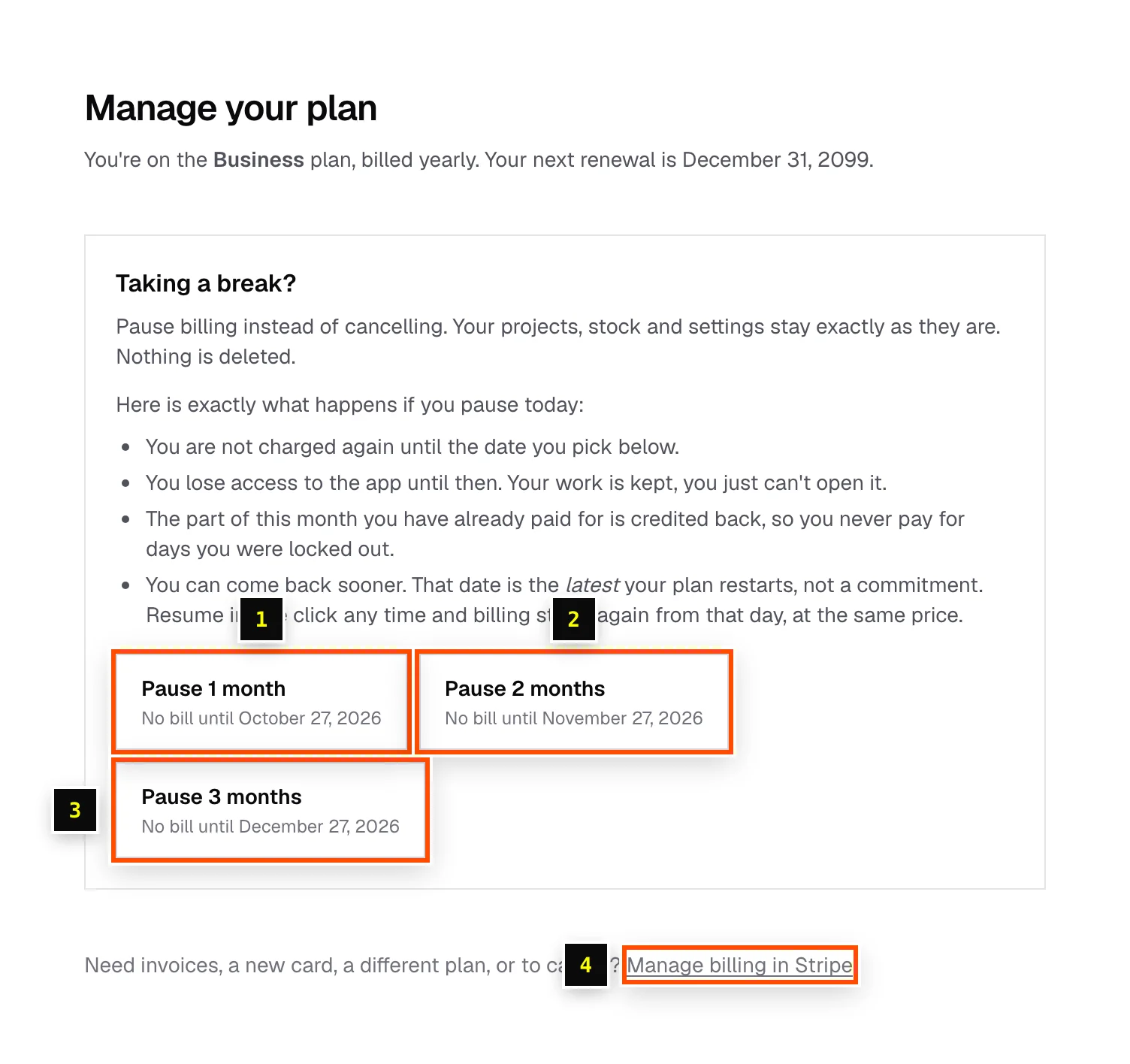
- Step 2: Under Taking a break?, click Pause 1 month, Pause 2 months or Pause 3 months.
- Step 3: Review the summary, which shows the date of your next bill, and click Confirm pause.
What happens while paused
- You're not charged until the date you picked.
- You can't open the app until you resume, but nothing is deleted.
- The unused part of the month you already paid for is credited against your first invoice back.
- You can pause as often as you like.
Resume early
The date is when your plan restarts automatically, not a commitment. To come back sooner, go to Manage your plan and click Resume my plan now (or Resume now on the plans page). Billing restarts that day at the same price.
Related articles
Didn't find what you need?
Email us and tell us which article you were reading.