Enter and edit parts
Add panels, bulk-edit them, multiply a module with Repeat list, and exclude rows from a run.
Browse all help topics
The parts table
Open the Cut List tab. Each row is a panel with a Name, length, width and Qty. Depending on the toolbar chips you may also see EB (edge banding), LM (laminate), GD (grain direction) and a material column.
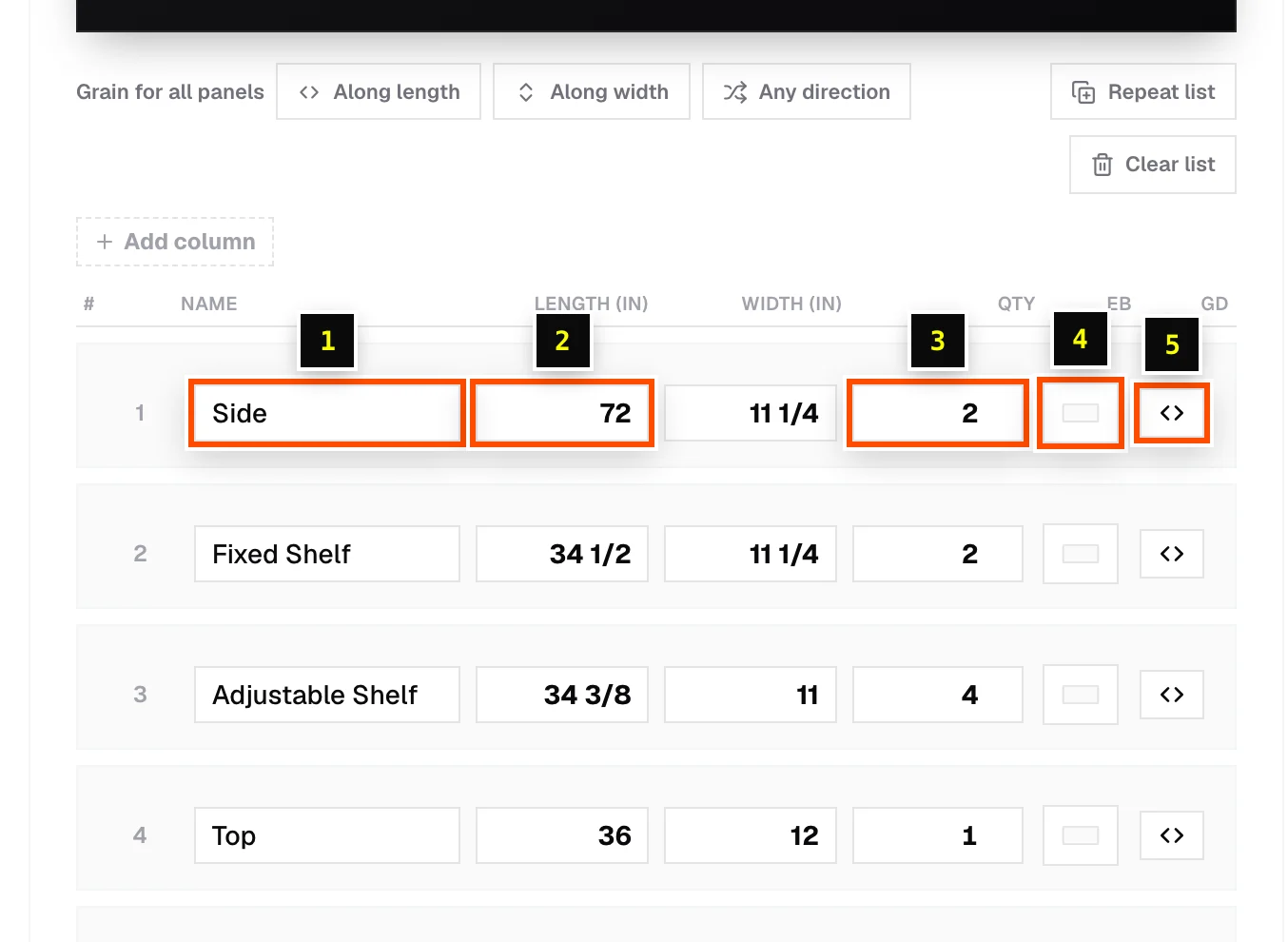
- Click Add panel to add a row. Remove panel (the × on a row) deletes it.
- Press Enter or click away to commit a value. Fractions and feet are fine:
23 3/4,1' 11 3/4". - Hover a row to highlight that part in the diagram (and in the 3D view, if you imported a model).
- Untick a row's checkbox to exclude that panel from the optimization without deleting it.
Edit many parts at once
- Step 1: Hover the # column and tick the checkbox on each row you want, or use Select all parts in the header.
- Step 2: A bulk bar appears. Grain → Set… changes grain direction, Multiply qty multiplies the selected quantities, Delete removes the rows and Clear deselects them.
Repeat list: build ten of the same cabinet
If your list describes one module (one cabinet, one drawer box), click Repeat list, enter the number of Copies and confirm. Every quantity is multiplied. A list with Side × 2 becomes 24 sides if you enter 12.
Clear list
Clear list removes every panel so you can start over or import a fresh file. Your materials, stock selection and settings are kept.
Row limit on the free tool
The free sheet optimizer optimizes up to 20 panel rows. Extra imported rows stay in the list but are locked. Use the checkboxes to choose which 20 are active, or start a trial to use them all.
Related articles
- Grain directionKeep visible grain running the right way on doors, sides and drawer fronts.
- Edge bandingMark which edges of each panel get banding, see the total length, and price it.
- Import from CSV or ExcelLoad a parts list from a spreadsheet: which columns are read, sample files, and tips.
- Custom fieldsAdd your own columns to a parts list, such as Room, Cabinet # or Finish.
Didn't find what you need?
Email us and tell us which article you were reading.