Add stock lengths
Set up the boards, bars or pipe you're cutting from, including mixed lengths like 8′, 10′ and 12′.
Available onFree toolsProBusinessTeam
Updated September 27, 2026Browse all help topics
Add a stock length
- Step 1: In a linear cut list, open the Materials tab.
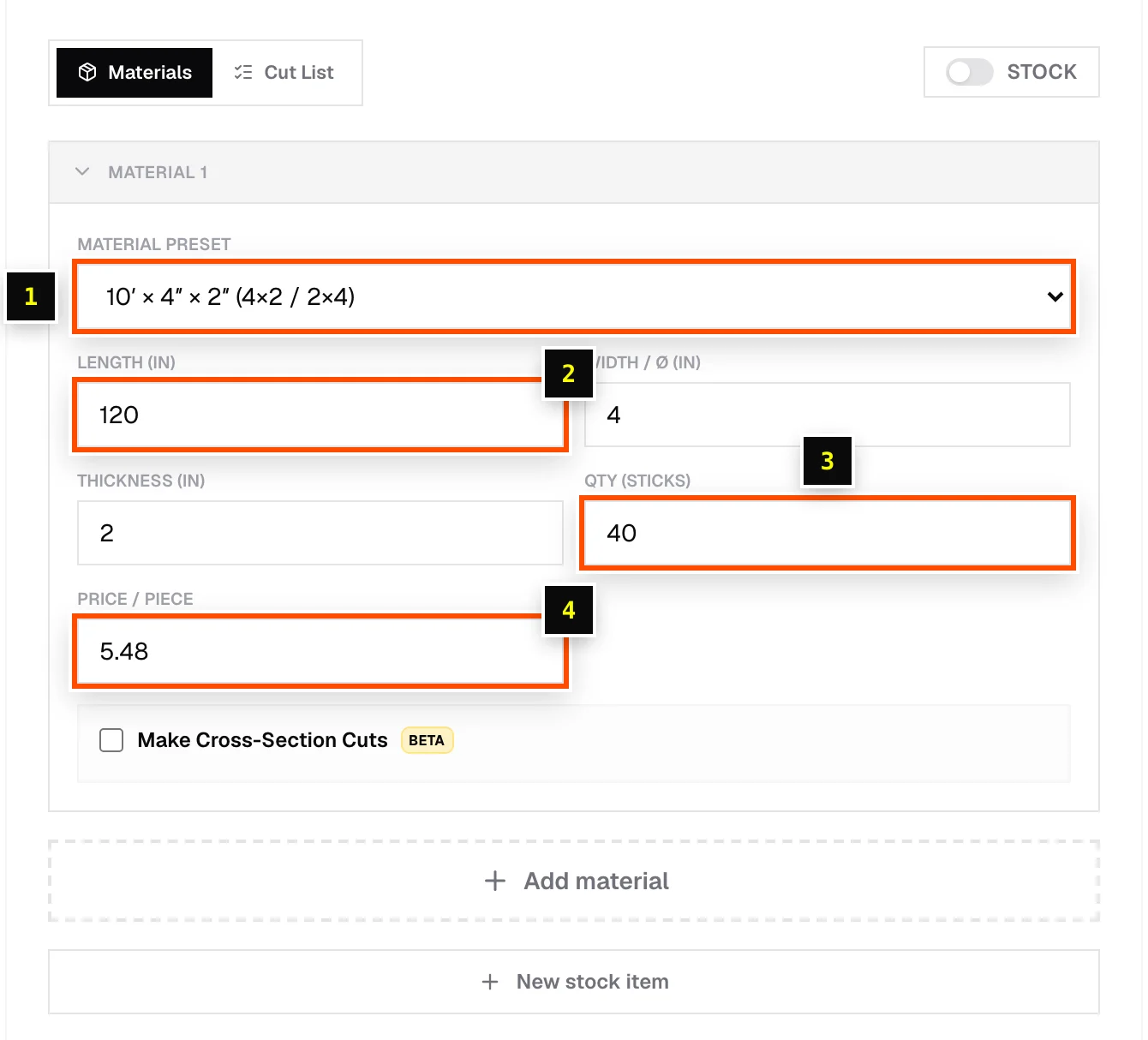
- Step 2: Open Material preset. Presets are grouped as Wood (Dimensional Lumber), Aluminium Profiles, Steel Sections and Pipes (PVC / Steel). In imperial units you'll see sizes such as 10′ × 4″ × 2″ (4×2 / 2×4) and 20′ × Ø1″.
- Step 3: Or choose Custom and type the Length, for example
12'or144. - Step 4: Optionally enter Width / Ø (width, or diameter for pipe) and Thickness. They're needed for paint estimates and cross-section cuts.
- Step 5: Enter Qty (sticks), the number of pieces you have.
- Step 6: Enter Price / piece if you want a cost estimate (with the Prices chip on).
Mixed lengths
On a paid plan, click Add material to add more stock rows, for example 8′, 10′ and 12′ 2×6. Turn on Material groups to assign each part to a stock row. Otherwise the optimizer chooses from the lengths you've listed.
Use lengths from your stock library
Switch the STOCK toggle on and choose from Select stock. Each row shows the Length, QTY, Code, Item name and Price from your stock library. If the plan needs more than you have in stock, you'll see an In stock: … This plan needs … warning.
Related articles
- Enter linear partsAdd cut lengths, set quantities, assign stock, and use Repeat list for repeated assemblies.
- Your stock librarySave the lumber, sheet goods and edge banding you buy, with sizes, prices, codes and quantities on hand.
- Read linear resultsPieces, yield, waste, cost and the cut diagram for each bar.
Didn't find what you need?
Email us and tell us which article you were reading.