Your stock library
Save the lumber, sheet goods and edge banding you buy, with sizes, prices, codes and quantities on hand.
Available onProBusinessTeam
Updated September 27, 2026Browse all help topics
Add a stock item
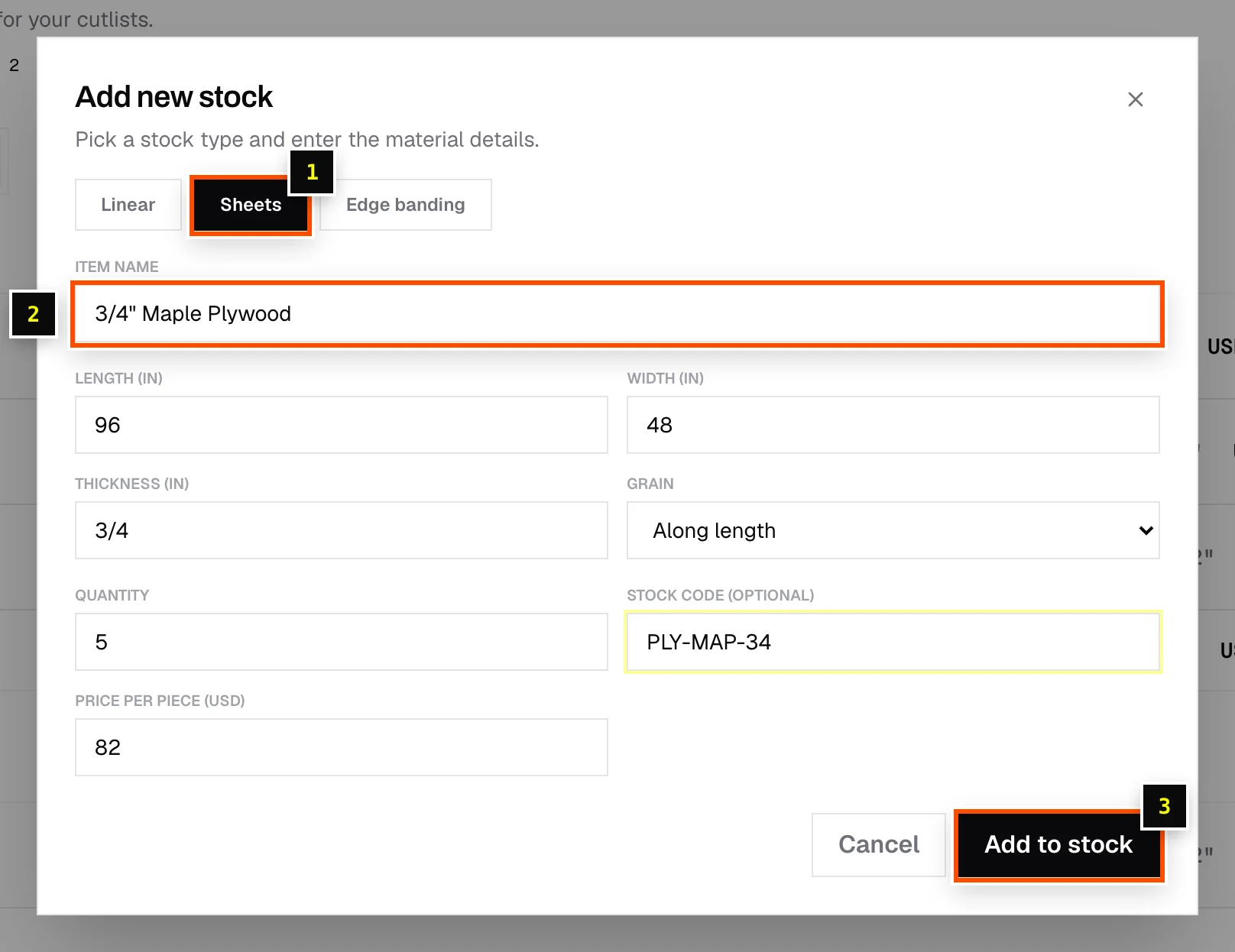
- Step 1: Click Stock in the top navigation, then Add stock.
- Step 2: Choose the type: Linear, Sheets or Edge banding.
- Step 3: Enter an Item name (for example
3/4 Birch plywoodorWhite oak 2×4), and the length, width and thickness. - Step 4: Sheets: set Grain (Any direction, Along length or Along width).
- Step 5: Enter the Quantity you have on hand and an optional Stock code (SKU or internal code).
- Step 6: Set the price (see below) and click Add to stock.
Pricing: per piece or per length
| Type | How it's priced |
|---|---|
| Sheets | Price per piece, for example $68 per sheet. |
| Linear | Price by → Piece (for example $4.20 per 2×4) or Length (for example $0.89 per 1 ft). |
| Edge banding | Piece (per roll) or Length (for example $24.99 per 250 ft). |
Edit, duplicate and delete
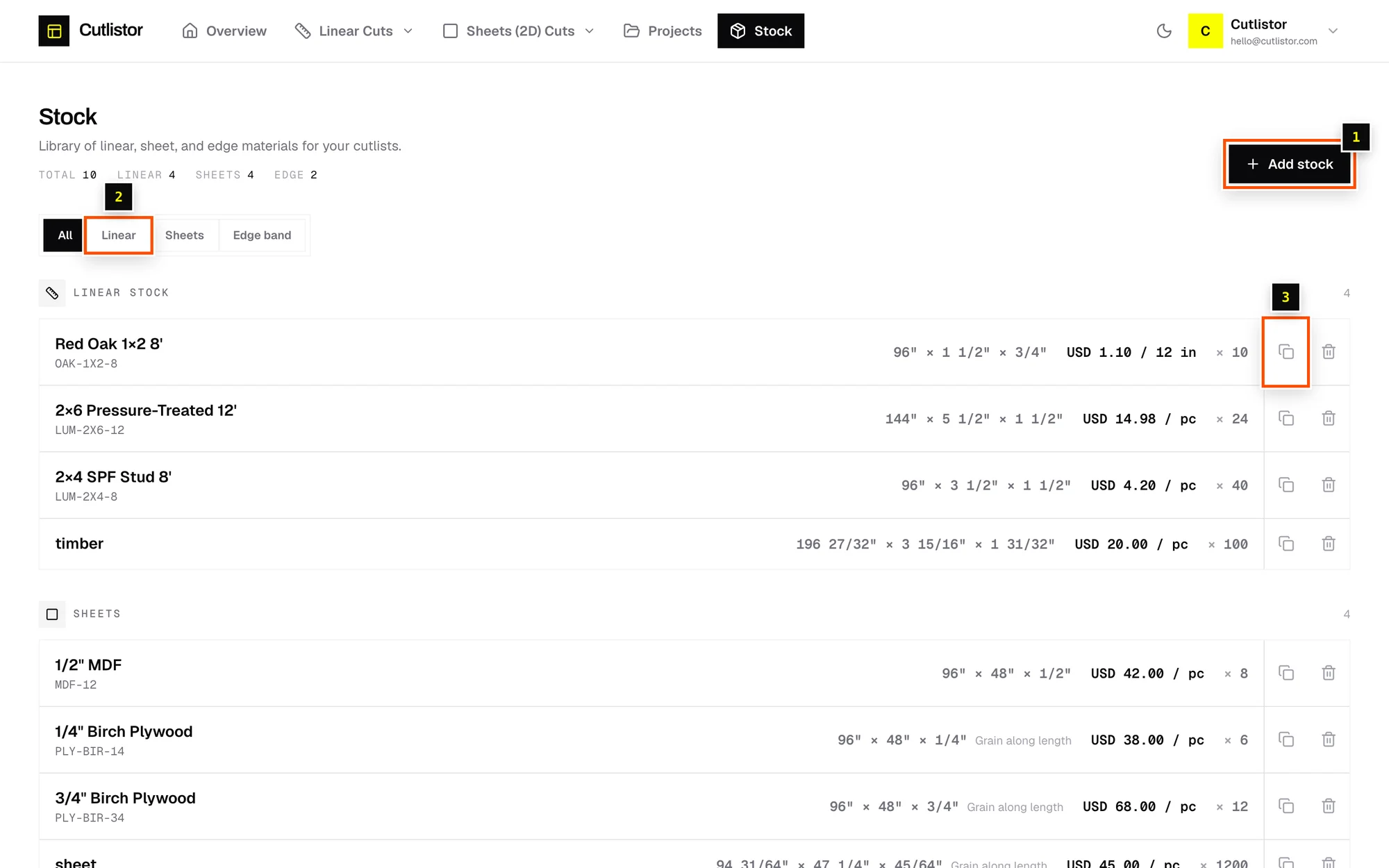
- Filter the list with Stock type: All, Linear, Sheets or Edge band.
- Click an item to Edit item. Change details and click Save changes, or Delete.
- The copy icon (Duplicate as new item) copies sizes and pricing. Change the name or code and click Save as new. Useful for the same board in several lengths.
Use stock in a cut list
In the editor's Materials tab, turn on the STOCK toggle and choose from Select stock. Sizes, grain, price and code come from the library, and Cutlistor warns you if a plan needs more than you have in stock. See Add stock sheets and Add stock lengths.
Limits
Pro allows a total stock quantity of 2,500 (the sum of every item's quantity). Business and Team are unlimited. See Usage and plan limits.
Related articles
- Add stock sheetsTell the sheet optimizer what board you're cutting from: size, thickness, quantity, price and grain.
- Add stock lengthsSet up the boards, bars or pipe you're cutting from, including mixed lengths like 8′, 10′ and 12′.
- Edge bandingMark which edges of each panel get banding, see the total length, and price it.
- Prices and cost estimatesPrice your stock, edge banding and laminate to get a material cost for every job.
Didn't find what you need?
Email us and tell us which article you were reading.