Projects and customers
Group cut lists by job and customer, and see the combined stock each job uses.
Available onProBusinessTeam
Updated September 27, 2026Browse all help topics
Create a project
- Step 1: Click Projects in the top navigation.
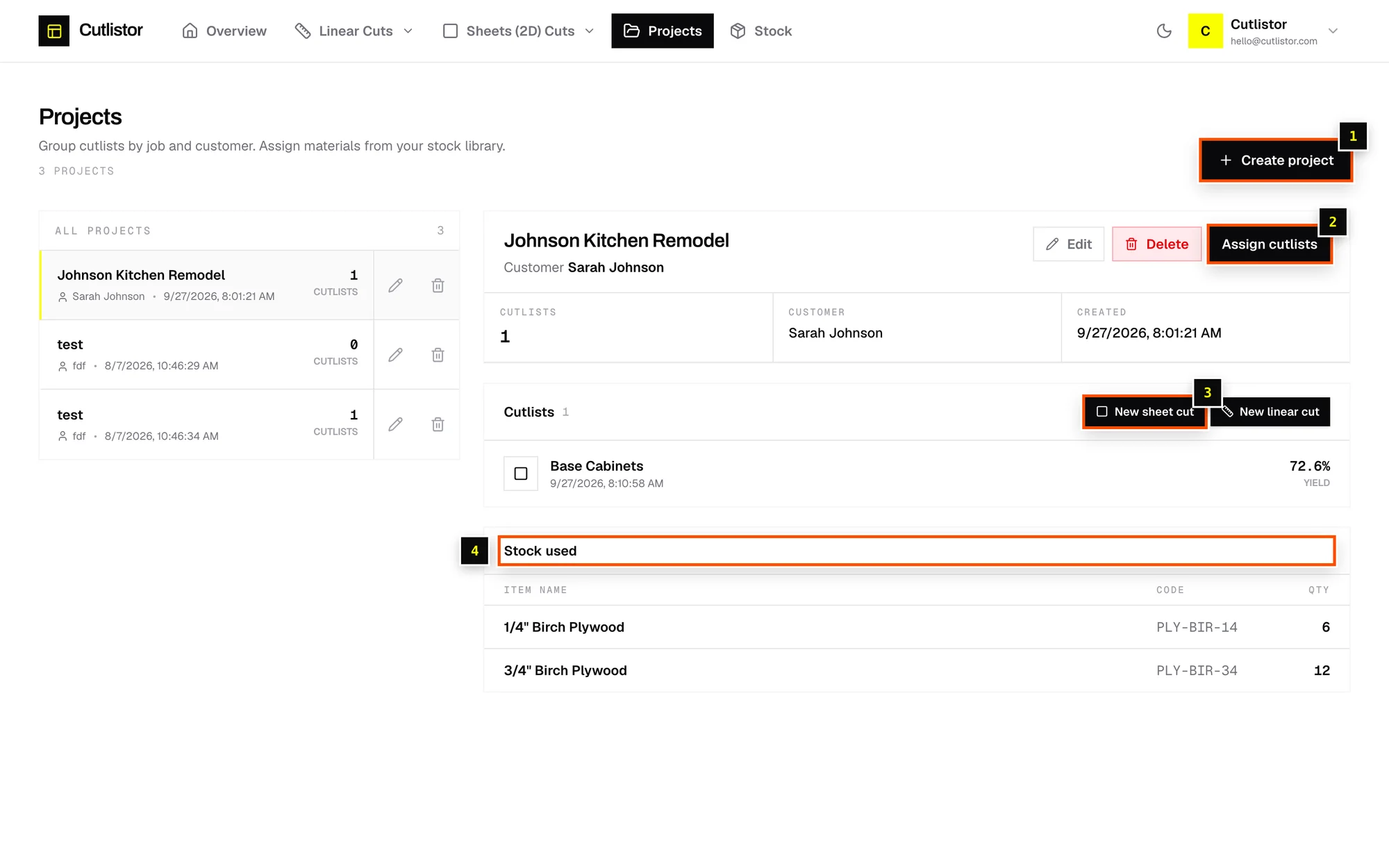
- Step 2: Click Create project.
- Step 3: Enter a Project name (for example "Johnson kitchen remodel") and a Customer name, then click Create.
Add cut lists to a project
- In a project, click New sheet cut or New linear cut to start a cut list that's already assigned.
- Click Assign cutlists, search, tick the cut lists that belong to the project, and click Save.
- Or, while editing a cut list, choose the project from the dropdown in the header.
What a project shows
- The Customer, and when the project was Created.
- Its Cutlists, with the yield of each.
- Stock used: a combined list of library materials (Item name, Code, Qty) across all its cut lists. Handy as a shopping list.
Edit or delete a project
Use Edit to change the name or customer. Delete removes the project only. Its cut lists become unassigned but aren't deleted.
Limits
Pro includes up to 250 projects per workspace. Business and Team are unlimited.
Related articles
- Saving, autosave and draftsHow cut lists are saved, what a draft is, and how to open or discard drafts.
- Your stock librarySave the lumber, sheet goods and edge banding you buy, with sizes, prices, codes and quantities on hand.
- Create and switch workspacesSet up a shared workspace for your shop and switch between it and your personal space.
Didn't find what you need?
Email us and tell us which article you were reading.