Saving, autosave and drafts
How cut lists are saved, what a draft is, and how to open or discard drafts.
Available onProBusinessTeam
Updated September 27, 2026Browse all help topics
Save a cut list
- Step 1: Give the cut list a name at the top of the editor.
- Step 2: Optionally click Assign to project to file it under a job. You can create a new project from there too.
- Step 3: Click Save. The button changes to Saved, and the cut list appears under All cuts and on the Overview.

Autosave
While you edit, Cutlistor autosaves in the background, shown as Auto-save on. A cut list you've never saved manually is kept as a draft, so nothing is lost if you close the tab. After you've saved it once, autosave keeps the saved cut list up to date.
Find and manage drafts
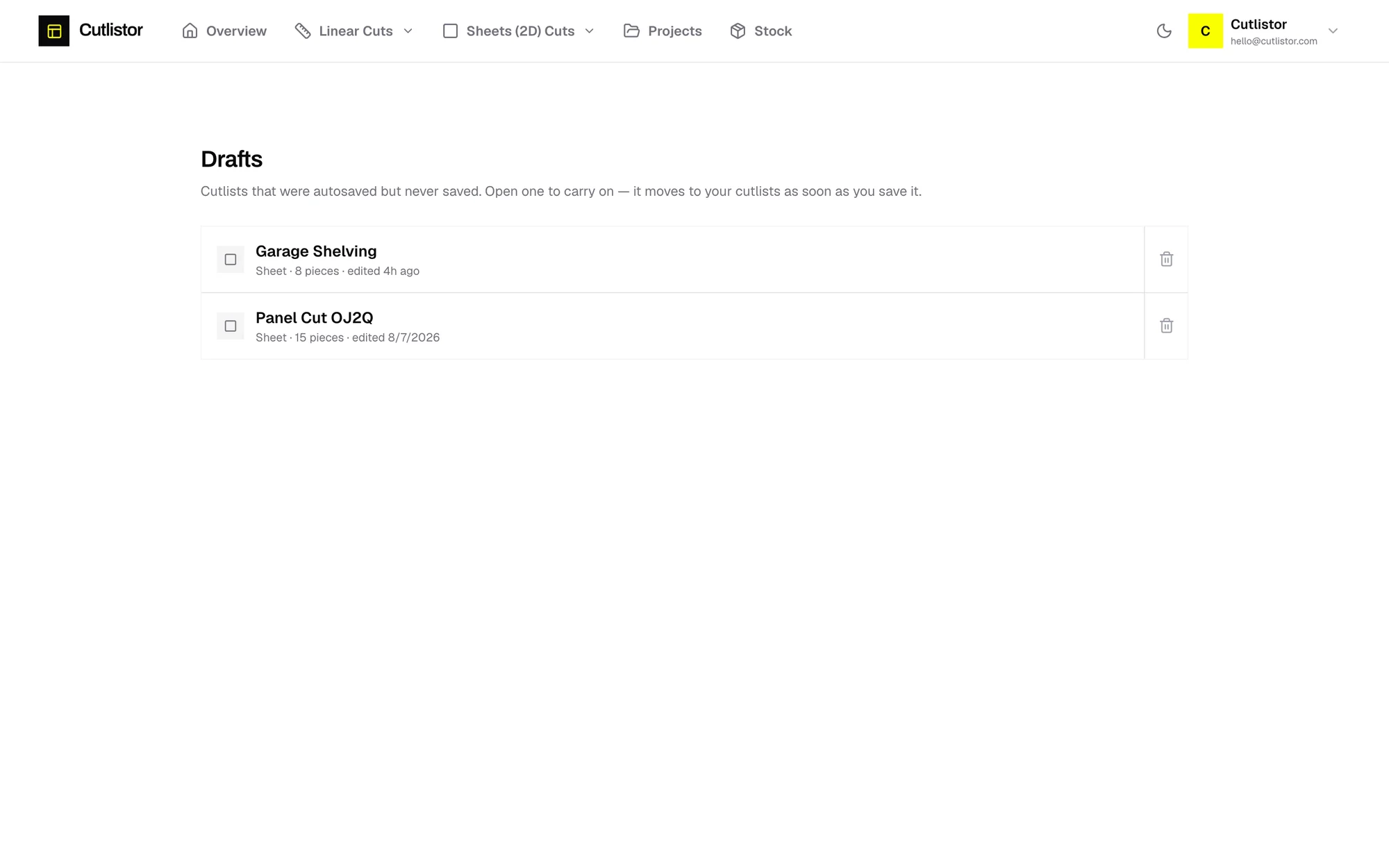
- Step 1: Open the account menu (your avatar, top right) and choose Drafts.
- Step 2: Click a draft to carry on editing. It moves to your cut lists as soon as you save it.
- Step 3: Or click Discard draft to remove it.
All cuts
Linear Cuts → All cuts and Sheets (2D) Cuts → All cuts list every saved cut list with its date, project, piece total and yield. Click one to open it. To delete several, tick them (or use Select all) and click Delete. They go to the Trash.
Related articles
- Trash: restore deleted cut listsDeleted cut lists stay in the Trash for 30 days, and you can restore them.
- Projects and customersGroup cut lists by job and customer, and see the combined stock each job uses.
- Reopen or share a cut listOpen recent work fast, bookmark a cut list, or share it with teammates.
Didn't find what you need?
Email us and tell us which article you were reading.