
Article
Best Cut List Calculators for Cabinet Makers
Cutlistor Team6 min read
Introduction
Cabinet makers live in rectangles: gables, shelves, backs, stretchers, toe kicks, and dozens of nearly identical parts per run. A cabinet cut list calculator must do more than add quantities. It should nest those rectangles on melamine or plywood, respect kerf and grain on visible faces, and produce cut sheets your floor crew can follow without reopening the design file.
Spreadsheets still dominate BOM tracking, but nesting belongs in an optimizer. The best workflow in 2026 keeps pricing and job metadata in Excel or Google Sheets, then imports CSV or XLSX into a browser optimizer for yield and PDF export.
This guide compares cut list calculators and optimizers cabinet shops actually use, with feature tables, per-tool pros and cons, and links to Cutlistor kitchen and cabinet calculators.
What cabinet makers need from a cut list calculator
| Cabinet task | Calculator-only approach | Optimizer approach |
|---|---|---|
| Tally 40+ case parts | Spreadsheet sums quantities | Same BOM, plus auto nesting |
| Minimize 4x8 sheet count | Guess and redraw | Algorithm packs rectangles with kerf |
| Toe kicks and cleats | Separate manual list | Linear optimizer for stick stock |
| Shop floor communication | Print spreadsheet rows | PDF with labeled layouts |
| Revision after field measure | Retype and relayout by hand | Edit import; layout refreshes (Cutlistor) |
Best cut list calculators for cabinet makers
We compare four practical options plus spreadsheet templates. "Calculator" searches often mean "optimizer" in practice; cabinet shops need nesting, not just totals.
1. Cutlistor (sheet + linear for casework)
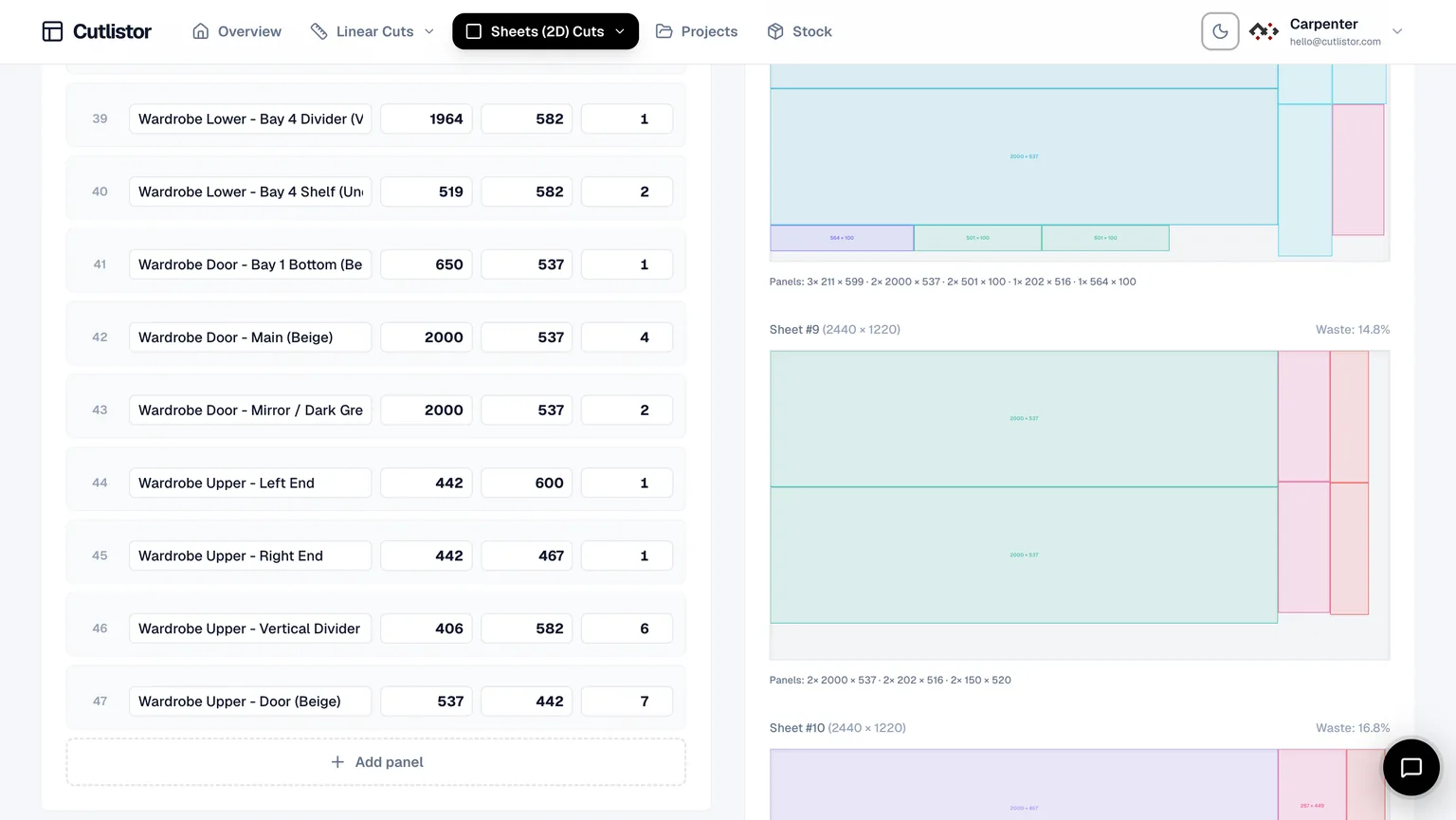
Cutlistor targets mixed cabinet jobs with a sheet optimizer for cases and interiors and a linear optimizer for stretchers, trim, and scribe stock. Import CSV/XLSX from your cabinet spreadsheet, set kerf and grain, switch layout methods, and export PDF cut plans.
Cabinet-relevant features
- 2D nesting for melamine and plywood with multiple methods (rips and rows, least waste, neat grid, router/CNC-friendly)
- 1D linear tool for face-frame stock, cleats, and filler lengths
- Real-time layout refresh when a designer changes depth or shelf count
- Kerf, grain direction, material grouping, and labeled PDF export
- CSV and XLSX import from existing cut list spreadsheets
- AI plan scanning from sketches and PDF elevations (paid quotas)
- 3D CAD import via GLTF, GLB, and Collada for models exported from design tools (paid quotas)
- Saved projects on accounts for multi-day kitchen runs (paid tiers)
Pros: one platform for panels and sticks; fast iteration; strong PDFs; import pipeline from Excel-based cabinet BOMs.
Cons: free tier daily limits; advanced import on paid plans; not a full cabinet design suite (no hinge hole drilling or room planner).
Best for: shops that already design in CAD or spreadsheets and need accurate nesting and floor documentation.
2. CutList Optimizer (browser casework nesting)
CutList Optimizer is a familiar browser choice for nesting cabinet rectangles on sheet goods with grain and kerf settings plus PDF reports.
Pros: simple, trusted, free tier handles many small kitchen jobs; linear mode covers basic stick lists.
Cons: manual Calculate after edits slows revision loops; limited spreadsheet import compared with Cutlistor; no AI or CAD takeoff.
Best for: smaller shops and hobbyists nesting panels without complex import pipelines.
3. OptiCutter (professional reporting)
OptiCutter suits cabinet businesses that want polished online reports and CSV workflows during trial or subscription use.
Pros: clean UX, solid reports, good for teams comparing paid online plans.
Cons: free access limited; less emphasis on real-time editing and CAD/sketch import than Cutlistor.
Best for: casework shops evaluating subscription optimizers with structured reporting.
4. OpenCutList (SketchUp extension)
OpenCutList lives inside SketchUp. It generates cut lists and layouts from your 3D model, which appeals to design-build cabinet shops already modeling in SketchUp.
Pros: tight integration with SketchUp geometry; good for shops that design and list in one model.
Cons: not a standalone browser optimizer; requires SketchUp workflow; export and nesting differ from cloud tools like Cutlistor.
Best for: SketchUp-native cabinet designers who want lists from the model without a separate BOM spreadsheet.
5. Cabinet cut list spreadsheets
Excel and Google Sheets templates remain the default cabinet cut list calculator for many installers. They track room names, finishes, and edge banding well, but they do not auto-nest on 4x8 sheets.
Pros: unlimited customization, offline access, easy integration with quoting.
Cons: manual nesting, higher scrap, no kerf-aware diagrams unless you build them.
Best for: BOM source data you import into an optimizer. See cut list optimizer vs Excel.
Cabinet cut list tool comparison
| Feature | Cutlistor | CutList Optimizer | OptiCutter | OpenCutList | Spreadsheet |
|---|---|---|---|---|---|
| Melamine / plywood nesting | Yes | Yes | Yes | Yes | Manual |
| Linear trim / cleats | Dedicated tool | Basic linear mode | Yes | Yes | Manual |
| Kerf + grain | Yes | Yes | Yes | Yes | Manual flags only |
| PDF cut sheets | Yes | Yes | Yes | Varies | Manual |
| CSV/XLSX import | Yes | Limited | CSV | From model | Native |
| Real-time layout | Yes | No | No | No | No |
| AI plan scan | Paid quotas | No | No | No | No |
| 3D CAD import | Paid quotas | No | Limited | SketchUp only | No |
| Browser, no install | Yes | Yes | Yes | No (extension) | Online Sheets |
| Saved kitchen jobs | Account / paid | Limited | Account | SketchUp file | Your file |
Recommended cabinet cut planning workflow
Start from accurate part sizes. Whether your source is CAD, a kitchen design export, or a spreadsheet template, consistent column names make import painless.
Group materials before nesting. Pre-finished white melamine and maple ply should not share a sheet layout. Cutlistor material grouping keeps finishes separate.
Run sheet optimization first for cases, then linear optimization for sticks. Mixing them in one manual diagram hides waste on shorter lengths.
Export PDF and review with the person running the saw. Confirm grain arrows, part IDs, and shelf counts match the room schedule.
On revision, re-import or edit rows instead of redrawing. Real-time refresh (Cutlistor) saves hours on multi-room kitchens when toe kick heights change.
Kitchen runs vs one-off custom cabinets
Kitchen cabinet cut lists
Kitchen jobs repeat similar widths with different heights and depths. Spreadsheet formulas help generate rows; the optimizer turns those rows into sheet counts you can quote confidently.
Use the kitchen cabinet cut list calculator landing page for terminology aligned with room schedules, then open the free sheet optimizer with your imported BOM.
Custom and built-in casework
One-off entertainment walls and closet systems often mix thick plywood gables with thin backing. Multiple stock thicknesses mean separate optimizer runs per thickness group, each with its own kerf and sheet size.
CAD import (Cutlistor paid quotas) helps when you already model in SketchUp, Fusion 360, or Blender and export GLTF or Collada instead of hand-typing dozens of parts.
Which cabinet cut list calculator should you use?
Choose Cutlistor if:
You import spreadsheet BOMs, need real-time sheet and linear nesting, and want PDF cut sheets without installing software.
Choose CutList Optimizer if:
You want a simple browser nest for smaller jobs and accept manual recalculation.
Choose OpenCutList if:
Your design and listing both live in SketchUp and you prefer an in-model extension.
Conclusion
The best cut list calculator for cabinet makers is really an optimizer paired with your existing BOM. Nesting, kerf, grain, and PDF cut sheets separate profitable casework from scrap-heavy guessing.
Cutlistor fits import-heavy shops that want browser sheet and linear tools with real-time refresh. CutList Optimizer and OptiCutter remain solid alternatives; OpenCutList wins inside SketchUp. Test with your next kitchen export and compare sheet count, PDF clarity, and revision time before you standardize.