Article
7 Best Free Cut List Optimizer Tools in 2026 (Real Limits Compared)
Cutlistor Team8 min read
Introduction
Free cut list optimizer tools have never been more capable. In 2026, you can nest plywood panels, optimize lumber lengths, export PDF cut sheets, and import spreadsheet BOMs without buying desktop software or paying upfront.
That does not mean every free tool is equal. Some cap daily runs, others require a manual Calculate click after each edit, and many handle sheets but not linear stock (or the reverse). This guide compares the strongest free options honestly, with feature tables and workflow notes so you can pick the right starting point.
If you want to try Cutlistor immediately, open the free sheet optimizer or the free linear optimizer. For a step-by-step walkthrough, see our how to use a cut list optimizer tutorial.
What to look for in a free cut list optimizer
Use this checklist when evaluating any free cut list calculator you find through search or forum recommendations.
| Requirement | Why it matters on free tiers | Cutlistor free tier | Typical legacy free tools |
|---|---|---|---|
| 2D sheet nesting | Panel jobs fail without rectangle packing | Yes, multiple layout methods | Yes on most browser tools |
| 1D linear optimization | Lumber, pipe, and trim need length packing | Yes, dedicated linear tool | Often separate site or paid add-on |
| Kerf setting | Without kerf, parts finish undersized | Yes | Yes on established tools |
| PDF cut plans | Floor staff need labeled layouts | Yes | Varies; some limit exports |
| CSV/XLSX import | Avoid retyping cabinet BOMs | Yes | CSV common; XLSX less common |
| Real-time refresh | Reduces clicks when iterating sizes | Yes | Often requires Calculate click |
| AI plan scan / CAD import | Speeds takeoff from sketches or models | Paid quotas; not required for basic free use | Rare on free tiers |
| Saved projects | Multi-day jobs need persistence | Accounts and paid plans | Varies |
Best free cut list optimizer tools in 2026
Below we review four practical free starting points plus spreadsheet templates. Prices and limits change; always confirm on each vendor site before you standardize a shop workflow.
1. Cutlistor (free browser tier)
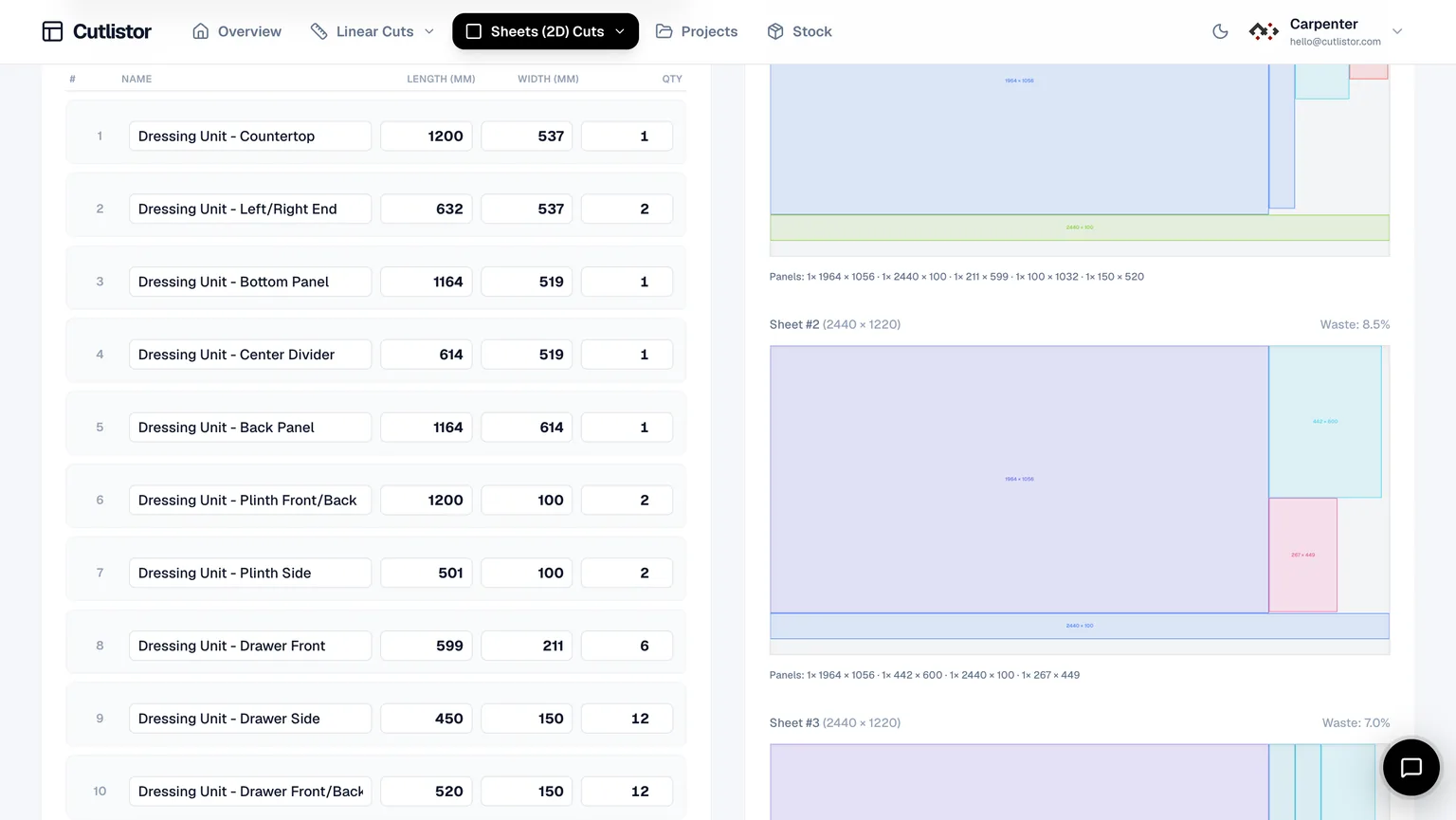
Cutlistor runs sheet and linear optimizers in the browser with kerf-aware layouts, PDF export, and CSV/XLSX import. Layouts refresh in real time as you edit parts, stock, or constraints.
Free use is genuinely unmetered where it matters for cutting: change a dimension, re-nest, change it again, at no cost. The 3-per-day allowance covers PDF exports and new projects. Cut lists stop at 20 rows, imported CSV or XLSX files at 5 rows, and there is no persistence between visits.
Key free-tier features
- 2D panel optimization for plywood, MDF, and melamine with multiple layout methods
- 1D linear optimization for lumber, trim, pipe, and bar stock
- Kerf, grain direction, and labeled PDF export
- CSV and XLSX import from existing spreadsheets
- Metric and imperial units
- Responsive layout on desktop, tablet, and phone browsers
- 3 PDF exports per day (editing and re-optimizing unlimited)
- 20 part rows per session
- CSV/XLSX import up to 5 rows
- 3 AI plan scans and 3 3D CAD imports per month on the free tier
- No saved projects until you sign up for a paid plan
Pros: real-time nesting without a Calculate button; paired sheet and linear tools; strong PDF output; spreadsheet import; modern UI.
Cons: nothing saves on the free tier; DXF export and saved projects need a paid plan; AI plan scanning and 3D CAD import quotas expand on paid tiers.
Best for: cabinet shops, CNC proofing, and hobbyists who want one platform for panels and sticks without installing software.
2. CutList Optimizer (free web tier)
CutList Optimizer is one of the longest-running browser cut list tools. Its free tier covers sheet and linear optimization with grain direction, cost fields, and PDF reports, capped at 5 calculations per day and 5 saved items (checked 23 July 2026).
Key free-tier features
- Sheet and linear modes on one site
- Grain direction and kerf settings
- PDF reports and basic cost calculations
- Familiar interface many woodworkers already know
- 5 calculations per day and 5 saved items on the free tier
Pros: proven, stable, and widely recommended in forums; simple mental model; 5 saved items on the free tier, where several rivals save nothing. A $4.90 one-time payment also unlocks paid features for 3 days, which beats any subscription for a single job.
Cons: you click Calculate after changes instead of seeing instant refresh; limited automation for sketches, CAD, or large multi-material BOMs; import options are narrower than newer platforms.
Best for: hobbyists and small shops that want a dependable free optimizer without accounts or subscriptions.
3. OptiCutter (free trial tier)
OptiCutter offers polished 1D and 2D optimization with labels, reports, and CSV import. A free tier exists, but limits and branding differ from fully open tools; treat it as a trial when comparing long-term free workflows.
Key features on accessible tiers
- Sheet and linear optimization
- Cost calculations and reporting
- CSV import and export
- Mobile-friendly web interface
Pros: clean UX, strong reports, good for professionals evaluating paid plans.
Cons: free use is constrained compared with unlimited hobby tools; no AI scan or broad CAD import; real-time editing is not its main strength.
Best for: shops testing a professional-grade online optimizer before committing to a subscription.
4. Spreadsheet templates (Excel / Google Sheets)
Spreadsheets remain the most common "free" cut list calculator. They excel at quantities, pricing, and job paperwork, but they do not auto-nest rectangles on sheets or pack lengths on bars.
Pros: unlimited customization, offline access, and zero vendor lock-in for lists and totals.
Cons: manual layout guessing, higher waste, and no kerf-aware nesting diagrams unless you build them yourself.
Best for: tiny jobs or as the BOM source you import into a real optimizer. See cut list optimizer vs Excel for a full comparison.
Free tier feature comparison
Quick reference for the free or trial tiers discussed above. Confirm current limits on each vendor site.
| Feature | Cutlistor free | CutList Optimizer free | OptiCutter free/trial | Excel template |
|---|---|---|---|---|
| What the daily limit meters | 3 PDF exports; optimizing unlimited | 5 calculations | Limited stock and parts | Unlimited |
| Sheet nesting | Yes | Yes | Yes | Manual only |
| Linear optimization | Yes | Yes | Yes | Manual only |
| Kerf aware | Yes | Yes | Yes | Formula only |
| PDF cut plans | Yes | Yes | Varies by tier | Manual export |
| DXF export for CNC/CAM | Paid plans | No | Yes | No |
| Part rows per session | 20 | Varies | Limited | Unlimited |
| CSV/XLSX import rows | 5 per file | Limited | Varies | Native |
| Real-time layout | Yes | No | No | No |
| Browser, no install | Yes | Yes | Yes | Yes (online Sheets) |
| AI plan scanning | Paid quotas | No | No | No |
| 3D CAD import | Paid quotas | No | No | No |
| Saved projects | Paid only | 5 on free tier | Account | Your file |
| Cheapest paid upgrade | $12/mo | $15/mo, or $4.90 for 3 days | ~EUR 19/mo | Office licence |
How to choose a free cut list optimizer
Choose Cutlistor if:
You want sheet and linear tools in one ecosystem, real-time layout refresh, PDF export, and CSV/XLSX import without installing software. Start on the free tier and upgrade when you need saved projects, DXF export for CNC, AI plan scanning, or CAD import.
Choose CutList Optimizer if:
Your budget is zero and you need work saved between sessions: its free tier keeps 5 items where Cutlistor keeps none. Also choose it for a one-off job, where the $4.90 three-day pass is cheaper than any subscription, or if you want the Android Pro app. Note the daily limits are not like for like - its 5 counts every calculation, while Cutlistor’s 3 counts only PDF exports and lets you re-optimize freely. You will also be clicking Calculate after each change, and there is no DXF export.
Choose OptiCutter if:
You are evaluating a subscription-grade online optimizer and want strong reporting during a trial period.
Keep spreadsheets if:
You only need lists and totals, then import rows into an optimizer for nesting. Pairing Excel with Cutlistor import is a common free workflow in 2026.
Getting the most from a free optimizer
Measure twice, import once. Build your BOM in a spreadsheet with consistent column names, then import CSV or XLSX into the optimizer instead of retyping dozens of cabinet parts.
Set kerf before you trust yield numbers. A 3 mm blade on a circular saw and a 2.4 mm kerf on a table saw produce different layouts; pick the value you actually cut with.
Export PDF early and walk the floor. Free tools are most valuable when a second person confirms labels, grain, and part counts before you load sheet goods.
Split sheet and linear jobs deliberately. Case parts belong in the sheet optimizer; face-frame stock and toe-kick lengths belong in the linear tool. Mixing them in one spreadsheet without optimization leaves money on the table.
Conclusion
The best free cut list optimizer in 2026 is the one that matches your material types, export needs, and tolerance for daily limits. Cutlistor, CutList Optimizer, and OptiCutter all cover core nesting on free or trial tiers; Cutlistor adds real-time refresh, paired linear tooling, DXF export for CNC, and a clear path to AI scan and CAD import when you outgrow free quotas.
Start with a real job from your shop, not a demo list. Run the same BOM through your top two picks, compare sheet count, offcut sizes, and PDF readability, then standardize the winner for your team.