Excel cut list optimizer: keep the spreadsheet, get the layout
Plenty of shops run their cut lists in Excel, and for quantities, costs and revisions that is the right tool. What a spreadsheet cannot do is arrange parts on a sheet or a bar with kerf allowed for. So don't replace it - download the template below so your columns line up, then import the file and let the optimizer do the geometry.
Nothing to install, no signup, no macros and no Solver add-in.
At a glance
- Email required?
- No - templates are free to download
- Reads .xlsx directly?
- Yes - no CSV export step
- Rename my headings?
- No - column matching handles it
- Cost to optimize
- Free, no account
- Sheet and linear?
- Both, each with its own template
- Back to Excel?
- Yes - export CSV or XLSX
Download the free cut list template
Four files, all free. Take the one that matches your material, keep the header row, and replace the example lines with your own parts. The XLSX and CSV versions of each contain identical rows, so pick whichever your workflow prefers.
These are the exact files the importer is built around, so if an import ever behaves oddly, start from one of these and the column mapping is guaranteed to be right.
What goes in each column
The template is really a column contract between your spreadsheet and the optimizer. One row per part type with a quantity - not one row per physical piece, unless your shop prefers it that way.
| Column | Sheet template | Linear template | What it does |
|---|---|---|---|
name | Required | Required | Label on the diagram and pull list |
length | Required | Required | Finished size along the primary axis |
width | Required | Not used | Second panel dimension for 2D nesting |
qty | Required | Required | How many identical pieces to cut |
grain direction | Optional | Not used | Locks visible faces so grain runs correctly |
material code | Optional | Optional | Groups parts onto the same stock SKU |
material name | Optional | Optional | Readable name on exports |
custom column | Optional | Optional | Job, room, phase or CNC layer notes |
You usually do not need to rename anything in your own workbook. Column matching recognises common variations such as “Width (mm)”, “Quantity” or “Part name”.
Five steps from spreadsheet to cut plan
- Download the template that matches your material. Sheet template for panels you cut in two dimensions (plywood, MDF, melamine). Linear template for parts cut to length from bar, stick, pipe or trim. Both come as CSV and XLSX.
- Replace the example rows with your parts. Keep the header row and overwrite the sample lines. One row per part type with a quantity, not one row per physical piece. Keep units consistent within a file.
- Import it into the optimizer. Open the free sheet or linear optimizer and import the file. Column matching handles common heading variations, so 'Width (mm)' or 'Quantity' are recognised without renaming anything.
- Set your stock size and kerf, then read the layout. Enter the sheet or stock length you actually buy and your blade kerf. The layout redraws as you change values, so there is no Calculate button to press.
- Export the cut plan, and the numbers back to your spreadsheet. Export a kerf-aware PDF for the shop floor, DXF if a CNC is in the loop, and CSV or XLSX to put sheet counts and offcuts back into your costing spreadsheet.
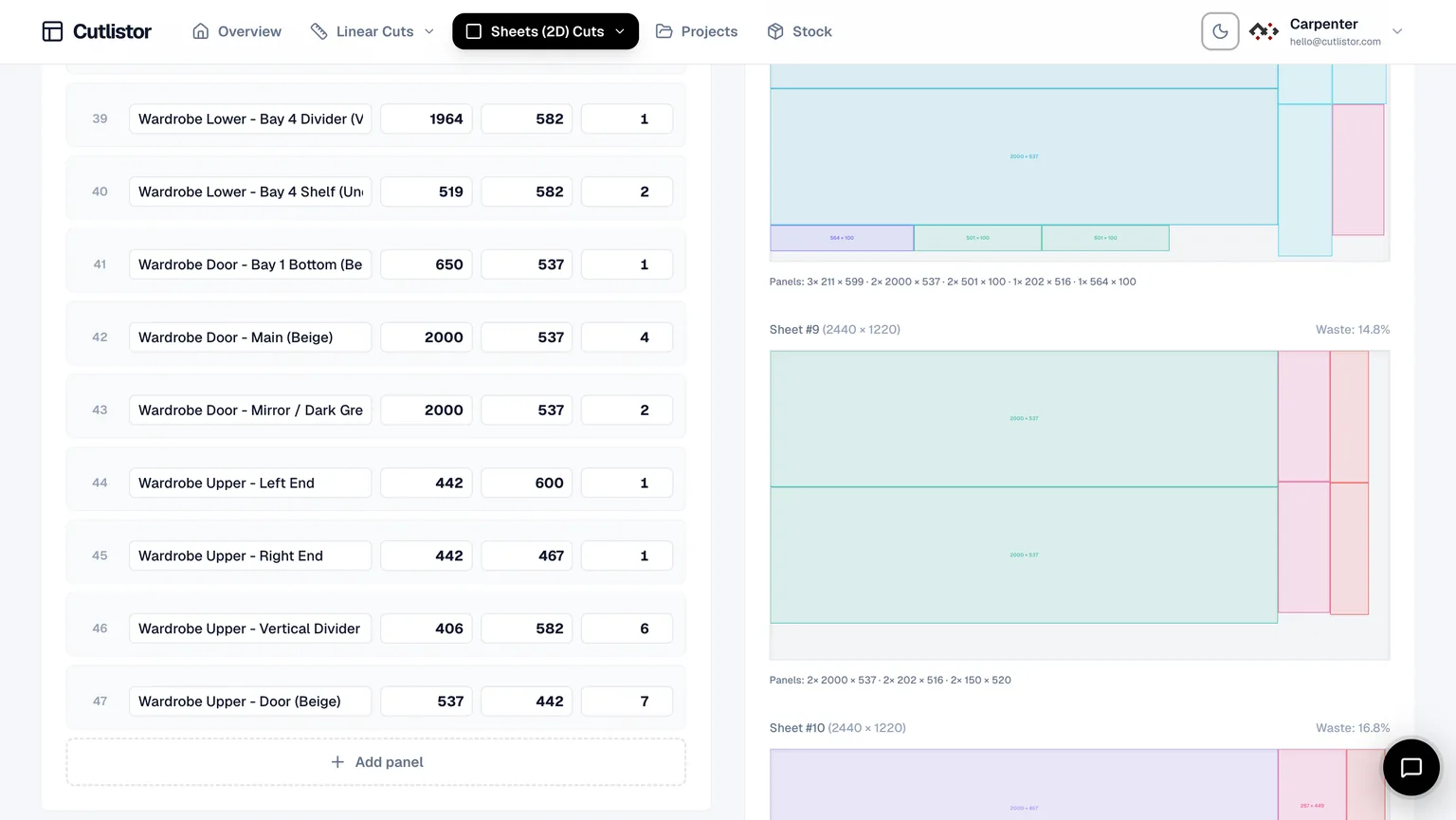
Sheet or linear: which template do you need?
Do not mix the two in one file. Panel rectangles go through the sheet optimizer; parts cut to length go through the linear one. Cabinet jobs often need both - melamine carcass sides on sheets, 2×4 cleats on sticks - so run two imports rather than one messy file.
- Sheet template for anything with a length and a width: plywood, MDF, melamine, laminated panels, plate. Handles kerf, grain direction, edge banding and laminate faces.
- Linear template for anything cut to length only: lumber, trim, moulding, pipe, tube, bar, angle. Handles kerf, mitered ends and cross-sections, so a 45-degree return costs the stock it actually consumes.
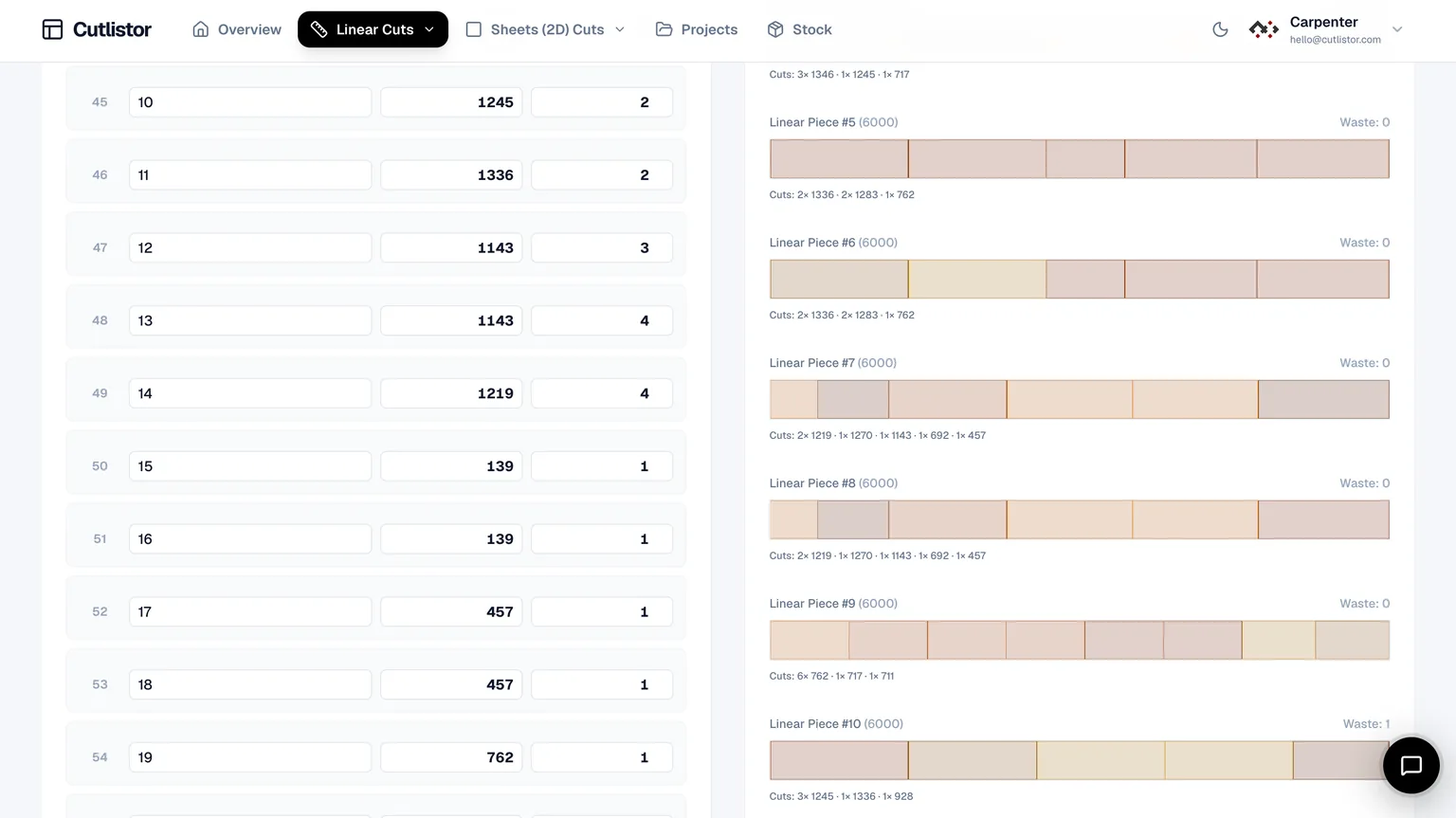
Cabinet cut list spreadsheets
Cabinet work is where spreadsheets get stretched furthest, because carcass sizing follows rules - fixed increments, standard depths, consistent reveals - that a spreadsheet expresses well and an optimizer does not try to. Keep that logic where it is.
Let the spreadsheet compute finished part sizes from your cabinet rules, then export those parts and import them. The optimizer answers the question the spreadsheet cannot: given these parts, this sheet size and this blade, how many sheets do you actually buy, and in what layout. If a carcass width changes, edit the rule in Excel, re-import, and the layout redraws.
Material codes are what make this work at scale. Give every part that should nest on the same SKU the same code - the 18 mm birch parts share one, the painted MDF fronts share another - and the optimizer keeps stock separate exactly where you buy it separately.
What the optimizer adds that a formula cannot
Worth being precise about the division of labour, because “use software instead of a spreadsheet” is bad advice. Excel keeps winning at quantities, costing, supplier exports and revision history. The optimizer covers the geometry:
- Nesting parts onto sheets and lengths - bin packing, which needs a solver rather than a formula.
- Removing kerf from every cut automatically, instead of a formula you maintain by hand.
- Re-solving instantly when one dimension changes, rather than silently invalidating a layout.
- Tracking usable offcuts between jobs as real stock with real value.
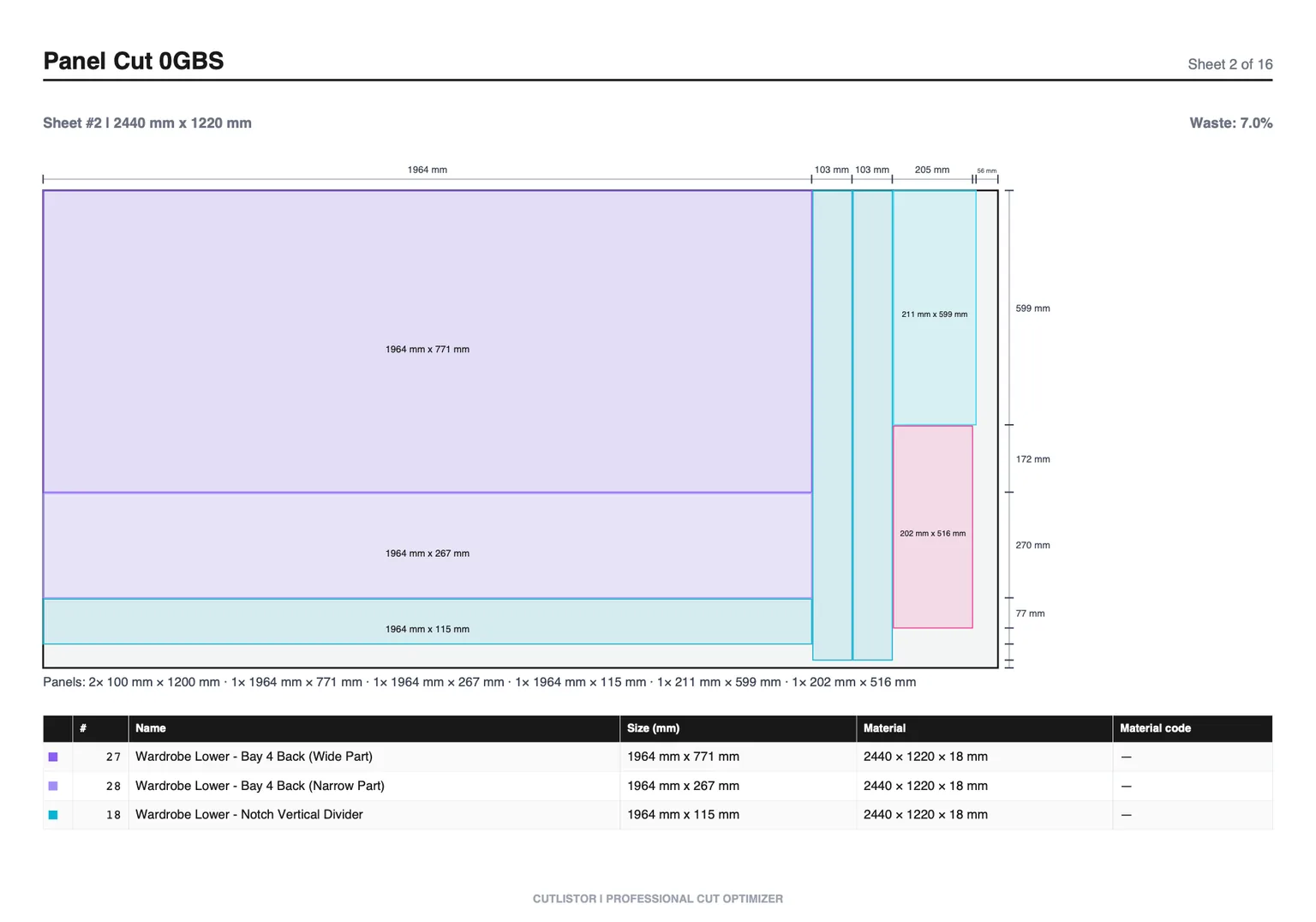
- Producing a cut diagram someone can follow at the saw, and DXF if a CNC needs the geometry.
If you want the fuller argument, including where Excel genuinely beats every optimizer, read cut list optimizer vs Excel.
And back into your spreadsheet
The round trip matters. Cut lists and layout tables export to CSV and XLSX, so sheet counts, per-part sheet assignments and remaining offcuts go back into the workbook where your costing formulas already live. The spreadsheet stays the system of record for anything commercial; the optimizer just stops it guessing at sheet counts.
Test it against a job you have already cut. Import the spreadsheet, set your real kerf and stock size, and compare the sheet count with what you actually bought. If the numbers match, your existing process is sound and you have lost five minutes finding that out.
FAQ
- Is there a free cut list calculator for Excel?
- Not as a working optimizer inside Excel, no - and templates that claim to be one either solve a single simplified strip-cutting case or depend on the Solver add-in and a model you maintain yourself. What does work: keep the parts list in Excel, download the free template here so the columns match, and import it into a browser optimizer that does the nesting. That is free and takes about a minute.
- Can Excel optimize a cutting list on its own?
- No. Nesting rectangles on sheets is 2D bin packing and cutting lengths from stock is 1D bin packing; both need a solver, not a formula. Excel is genuinely better than any optimizer at the parts list, quantities, costing and revision history - which is why the sensible workflow keeps both rather than replacing one with the other.
- What columns does the cut list template use?
- Sheet imports use name, length, width, qty, grain direction, material code, material name, and a free-text custom column. Linear imports use name, length, qty, material code, material name and a custom column - no width, because width is not part of the waste equation for parts cut to length.
- Do I have to rename my existing spreadsheet headings?
- Usually not. Column matching recognises common variations, so headings like 'Width (mm)', 'Quantity' or 'Part name' map to the right fields automatically. Download the template if you want to see the canonical names, but starting from your own workbook normally works.
- Does it read .xlsx directly or do I need to save as CSV first?
- It reads XLSX workbooks directly - no CSV export step. Keep a single header row and avoid merged cells in the data area so every column is read cleanly. CSV works too if you prefer it.
- Is there a linear cut list optimizer for Excel?
- Same answer as the sheet case: the optimization cannot happen inside the spreadsheet, but the linear template here gives you the exact columns, and the free linear optimizer imports it and handles kerf, mitered ends and cross-sections for pipe, tube, bar and angle stock.
- What does it cost?
- The templates are free to download and the browser optimizers are free to use with no account: 3 PDF exports per day with unlimited editing and re-optimizing, and up to 20 cut list rows. Saved projects, larger imports and DXF export start at $12 a month.
- Can I get the results back into Excel?
- Yes. Cut lists and layout tables export to CSV and XLSX, so sheet counts, offcuts and per-part assignments go back into the costing spreadsheet where your formulas already live. The round trip is deliberate - the spreadsheet stays the system of record for anything commercial.