
Article
Best CutList Optimizer Alternatives in 2026
Cutlistor Team7 min read
Introduction
CutList Optimizer (cutlistoptimizer.com) is the tool most woodworkers reach for first when they need to nest cabinet parts on sheet goods. It is free, runs in the browser, and gets the job done for simple panel layouts. But it is not the only option, and depending on how you work it may not be the best one.
If you import spreadsheets, revise dimensions constantly, mix sheet panels with linear stock, or want layouts that redraw the instant you edit a part, it is worth comparing alternatives before you standardize a workflow.
This guide ranks the practical CutList Optimizer alternatives in 2026, with feature tables and honest pros and cons. Where Cutlistor fits, we say so; where another tool is the smarter pick, we say that too.
What to look for in a CutList Optimizer alternative
Most search traffic for "cutlist optimizer" is really looking for one capability: pack rectangular parts onto sheets with minimal waste and print a plan. The differences between tools show up once your jobs get real.
Before switching, score each candidate against the work you actually do, not a feature checklist you will never touch.
- Sheet (2D) nesting with kerf and grain direction on visible faces
- Linear (1D) optimization for lumber, trim, pipe, and bar - many tools skip this
- Real-time layout refresh when you edit a part, instead of a manual recalculate step
- Spreadsheet import (CSV/XLSX) so you are not retyping a BOM
- Readable PDF cut plans your crew can follow at the saw
- DXF export for CNC/CAM handoff when your workflow needs solver-native geometry
- Account features when repeat jobs justify saved projects and stock inventory
The best CutList Optimizer alternatives
Here are the options worth testing, with the use case each one fits best.
1. Cutlistor (best for import-heavy, fast-iteration shops)
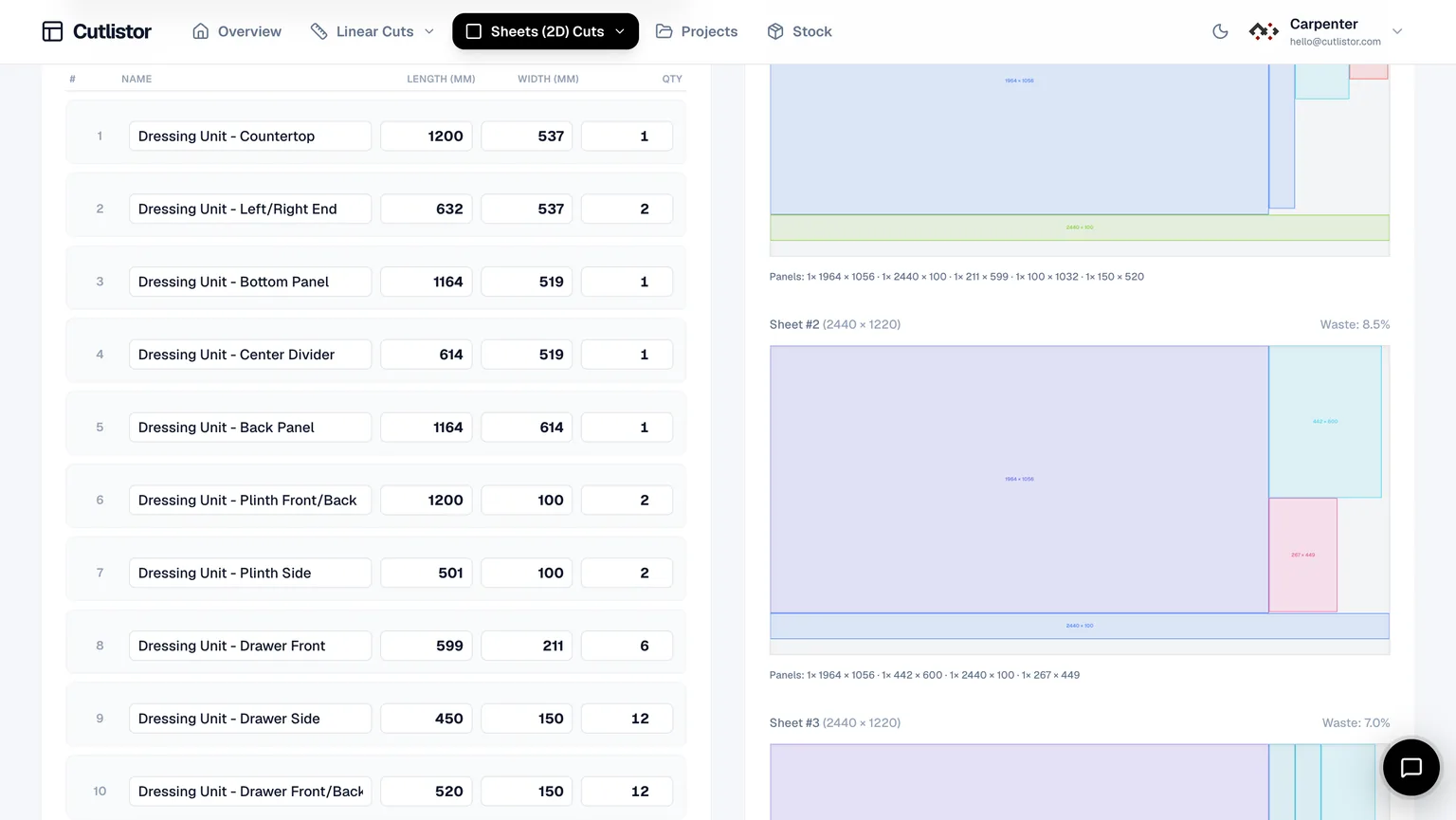
Cutlistor runs both a sheet optimizer and a dedicated linear optimizer in the browser. Layouts and yield refresh in real time as you edit stock and parts, so dimension changes do not break your momentum. Import CSV/XLSX, set kerf and grain, switch between multiple sheet layout methods, and export labeled PDF cut plans.
- Sheet 2D nesting with four layout methods: rips & rows, fewest sheets / least waste, neat grid, router / CNC layout
- Separate 1D linear optimizer for studs, trim, pipe, tube, and bar stock
- Real-time layouts - no manual Calculate button after every edit
- CSV and XLSX import; AI plan scanning from photos and PDF sketches (paid quotas on saved projects)
- 3D CAD import (glTF, GLB, Collada) from SketchUp, Fusion, and Blender (paid quotas on saved projects)
- Saved projects, stock inventory, multi-currency, and metric/imperial units on accounts
- DXF export for sheet and linear layouts on paid plans
- 3 PDF exports per day (editing and re-optimizing unlimited)
- 20 part rows per session
- CSV/XLSX import up to 5 rows
- 3 AI plan scans and 3 3D CAD imports per month on the free tier
- No saved projects until you sign up for a paid plan
The free tier draws its line at output, not at effort. Rearranging parts and re-running the nest as many times as you like costs nothing; the daily allowance of 3 is spent only when you export a PDF or open a new project. Sessions hold up to 20 part rows, CSV and XLSX files import up to 5 rows each, and closing the tab clears the work.
Pros: one tool for panels and sticks; fastest revision loop; strong spreadsheet and CAD import pipeline; DXF export for CNC shops on paid plans; free browser tools with no install.
Cons: nothing saves between sessions on the free tier; DXF export and saved projects need a paid plan; it is an optimizer, not a full cabinet design suite.
2. CutList Optimizer (the baseline you are comparing against)
CutList Optimizer is the familiar browser tool for nesting rectangles on sheet stock with kerf, grain, and PDF reports. It is trusted, simple, and handles most small kitchen and hobby jobs.
Pricing (checked 23 July 2026): the free tier allows 5 calculations per day and 5 saved items. Silver is $15/month, or $13.50/month billed yearly, for unlimited calculations, 150 saved items, priority support, premium features and the Android Pro app. Gold is $25/month, or $22.50 billed yearly, adding high-speed calculation and 20,000 saved items. There is also a $4.90 one-time payment that unlocks Silver features for 3 days, with saved data still loadable afterwards.
Pros: the most generous free tier here at 5 calculations a day plus 5 saved items; a genuinely useful $4.90 three-day pass for one-off jobs; a native Android Pro app on paid tiers; well known and fast to learn.
Cons: manual recalculation after edits; limited spreadsheet import; linear support is basic; no DXF export, AI scanning or CAD takeoff; Gold charges extra for calculation speed.
Verdict: if you cut one job a year, buy the $4.90 pass and stop reading. If your budget is zero, its free tier beats ours. Look elsewhere when you need linear cutting, DXF for a CNC, or parts arriving from spreadsheets and CAD.
See the full Cutlistor vs CutList Optimizer comparison for the head-to-head price and feature breakdown.
3. OptiCutter (best for polished reports and planner API needs)
OptiCutter is another browser-hosted optimizer with clean reports, material groups, and paid tiers that advertise DXF export, a planner API, and multilingual UI - useful for CNC vendors and larger operations.
Pros: professional reporting, cost and priority objectives, DXF and API options on paid plans.
Cons: free access is limited; less emphasis on real-time editing and design-file (CAD/sketch) import.
We compare them head-to-head in CutList Optimizer vs OptiCutter.
4. Cutlist Evolution (best for spreadsheet-style desktop users)
Cutlist Evolution and similar desktop optimizers appeal to shops that want an installed, spreadsheet-driven workflow. If you prefer offline software over a browser tool, this category is worth a look.
Pros: offline, familiar grid entry, established in some cabinet shops.
Cons: installation and updates to manage; slower iteration than live browser layouts; no AI/CAD import.
5. CutList Plus fx (best for full estimating + costing)
CutList Plus fx is a long-running Windows desktop product that bundles optimization with costing, labels, and shop reports. It suits shops that want estimating and inventory in one paid package and do not mind a desktop install.
Pros: deep costing and reporting; mature feature set; printed labels.
Cons: paid desktop software; Windows-centric; heavier than a quick browser nest for one-off jobs.
6. OpenCutList (best for SketchUp-native designers)
OpenCutList is a free SketchUp extension that generates cut lists and layouts directly from your 3D model. If you already design every project in SketchUp, listing parts from the model is hard to beat.
Pros: free, generates lists straight from SketchUp geometry, good for design-build shops.
Cons: requires SketchUp; not a standalone browser tool; nesting and export differ from cloud optimizers.
CutList Optimizer alternatives compared
| Feature | Cutlistor | CutList Optimizer | OptiCutter | CutList Plus fx | OpenCutList |
|---|---|---|---|---|---|
| Sheet (2D) nesting | Yes | Yes | Yes | Yes | Yes |
| Linear (1D) optimization | Dedicated tool | Basic | Yes | Yes | Yes |
| Real-time layout refresh | Yes | No | No | No | No |
| CSV / XLSX import | Yes | Limited | CSV | Import options | From model |
| AI plan / sketch scan | Paid quotas | No | No | No | No |
| 3D CAD import | Paid quotas | No | Limited | No | SketchUp only |
| PDF cut plans | Yes | Yes | Yes | Yes | Varies |
| DXF export for CNC/CAM | Yes | No | Yes | Varies | No |
| Browser, no install | Yes | Yes | Yes | No (desktop) | No (extension) |
| Free tier | 3 PDF exports per day (editing and re-optimizing unlimited); No saved projects until you sign up for a paid plan | 5 calculations/day, 5 saved items | Limited | Trial | Yes |
Which alternative should you choose?
Choose Cutlistor if:
You import spreadsheet or CAD BOMs, revise dimensions often, mix sheet and linear stock, and want PDF cut plans or DXF export for CNC handoff without installing software.
Stay on CutList Optimizer if:
You nest simple panel jobs occasionally and a free, manual-recalculate browser tool already covers your needs.
Choose OptiCutter or CutList Plus fx if:
Your procurement demands a planner REST API, detailed costing objectives, or printed labels, and you are comfortable on paid or desktop software.
Conclusion
There is no single best CutList Optimizer alternative - there is the one that matches how your shop works. For fast iteration, spreadsheet and CAD import, combined sheet plus linear nesting, and DXF export in the browser, Cutlistor is built for that loop. For costing-heavy desktop work or planner API integrations, CutList Plus fx and OptiCutter remain strong picks, and OpenCutList wins inside SketchUp.
Run the same job through two tools, match kerf, lock grain, and compare sheet count, PDF clarity, and how long a dimension change takes. The tool that survives your revisions earns the subscription.