Comparison · 9 min read
Cut list optimizer vs Excel
Most workshops start with a spreadsheet, and a spreadsheet is genuinely the right tool for a lot of what a cut list involves - quantities, costs, part numbers, revisions. What it cannot do is arrange rectangles on a sheet or lengths on a bar while accounting for kerf. This page is about where that line falls, and about keeping the spreadsheet rather than replacing it.
The short verdict
Keep Excel for what it is unbeatable at: the parts list itself, quantities, material costs, revision history and anything you need to send a supplier.
Add an optimizer for the geometry: nesting, kerf, offcut tracking and the cut diagram. These are not competing tools, and the common mistake is trying to make the spreadsheet do the second job with a formula.
No Calculate button, and no paying for speed
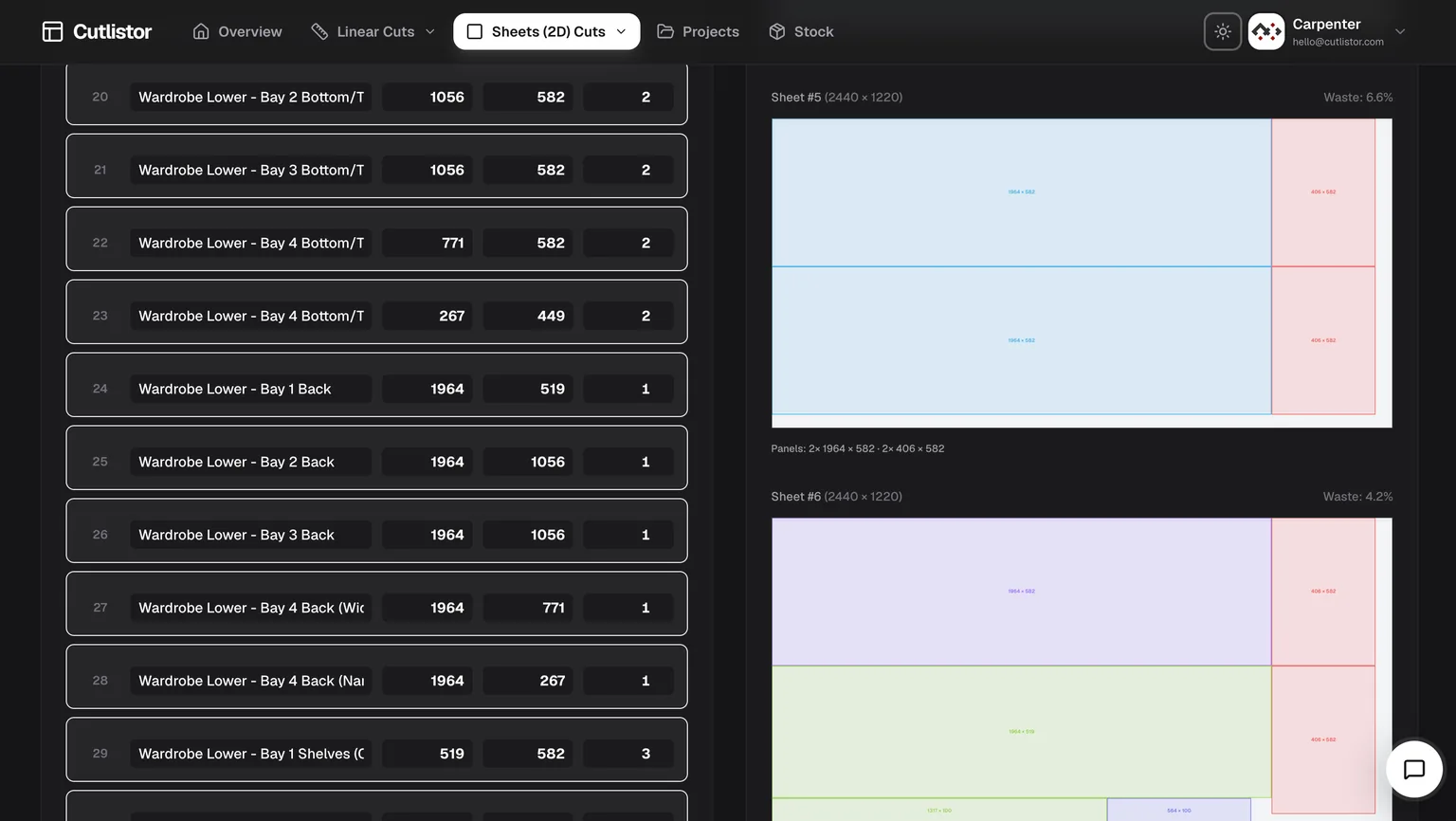
Cutlistor recalculates as you type. Change a part width, add a sheet, adjust the kerf - the layout redraws immediately. There is no Calculate button in the interface, because there is nothing to wait for.
That sounds cosmetic until you price a real job. Cut lists are not entered once; they are edited twenty times as a design settles. A tool that recalculates on demand charges you a click and a pause for every one of those edits, and the cost lands precisely when you are iterating hardest.
It is also worth noting what Cutlistor does not do: charge for calculation speed. Every plan, including the free tier, runs the same solver at the same speed. Some competitors reserve faster calculation for a higher tier - so the customer who edits most, and therefore waits most, is the one asked to pay extra to stop waiting.
Four ways to get parts in - most tools have one
Typing a cut list by hand is where the time actually goes, and it is where almost every optimizer leaves you. Cutlistor accepts parts from four directions:
- CSV import, with automatic column matching so your existing headings work without renaming anything.
- Excel / XLSX import, reading the workbook directly rather than asking you to export to CSV first.
- AI scanning of PDF plans, drawings and photographed sketches - point it at an emailed elevation and get parts out.
- 3D CAD model import from glTF, GLB and Collada, so panels come straight out of a SketchUp or Fusion model.
You do not have to guess the format. Download a sample below, replace the rows with your own parts, and import it - sheet files take name, length, width, qty, grain direction, material code, material name and a free-text column; linear files take name, length, qty, material code, material name and a free-text column. Column matching handles the common variations, so headings like “Width (mm)” or “Quantity” are recognised without renaming.
| Import path | Cutlistor | Typical browser optimizer | Typical desktop optimizer |
|---|---|---|---|
| Manual entry | Yes | Yes | Yes |
| CSV | Yes, with column matching | Sometimes, fixed format | Usually |
| Excel / XLSX direct | Yes | Rarely | Sometimes |
| PDF plan or sketch (AI) | Yes | No | No |
| 3D CAD mesh | Yes (glTF, GLB, Collada) | No | Rarely |
Checked against each vendor's published feature list on the date shown at the foot of this page.
The detail features nobody else bothers with
Most optimizers stop at rectangles and lengths. Real work has awkward parts, and these are the ones that usually get handled by hand on a notepad:
- Laminate calculations - panels that gain thickness and cost on one or both faces, accounted for in the layout and carried into the exported documents rather than added afterwards.
- Edge banding, tracked per edge and shown on the diagram so whoever is banding knows which edges without asking.
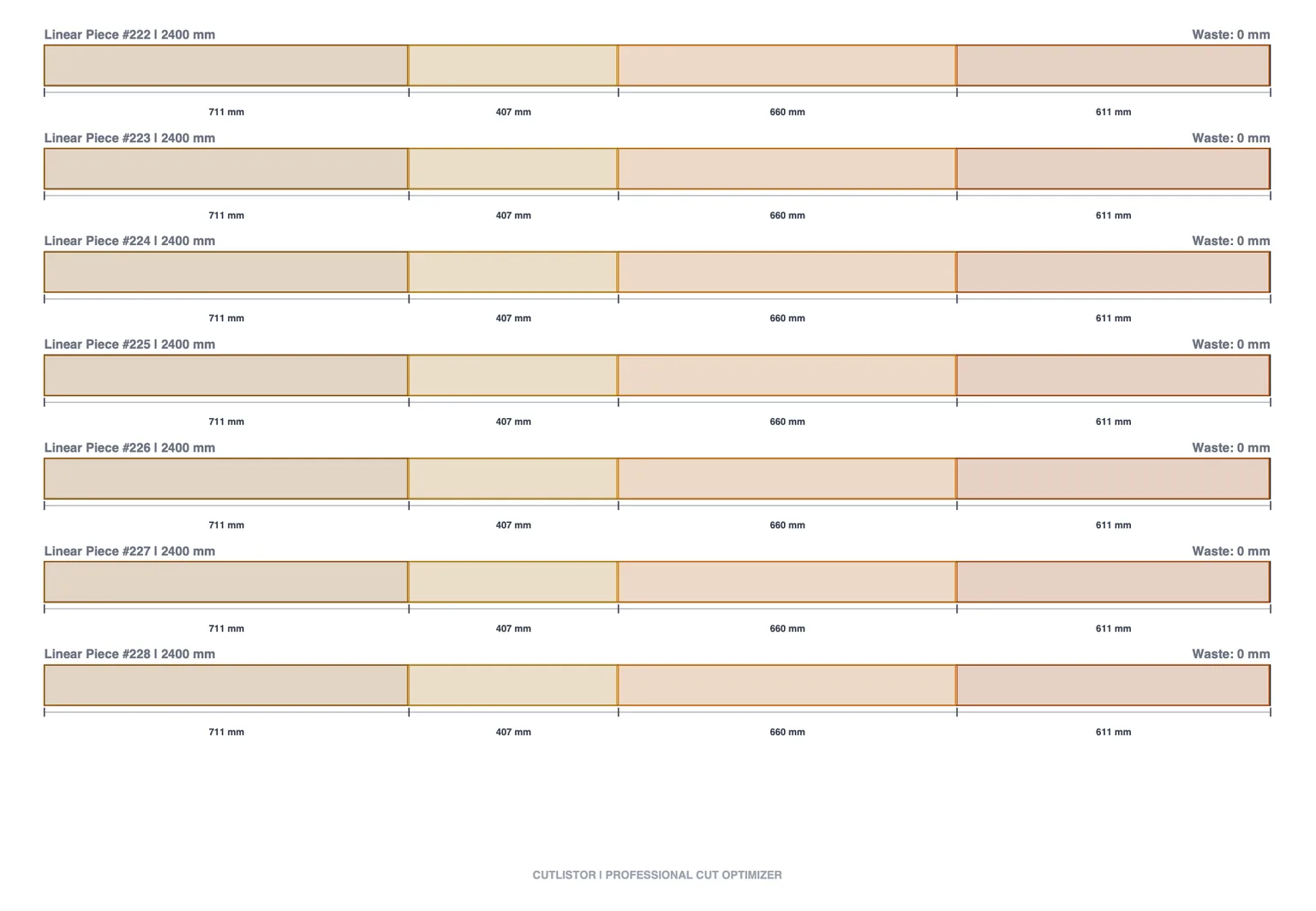
- Mitered ends on linear cuts, with the miter angle affecting the length consumed on the stock - a 45-degree return does not cost the same as a square cut, and pretending otherwise is how trim runs come up short.
- Cross-section aware linear stock for pipe, tube, bar and angle, so the material is not treated as an abstract line.
- Grain direction locking on visible faces, honoured through nesting rather than applied as an afterthought.
- DXF export from both sheet and linear layouts, with the miter geometry preserved for a CNC.
Where Excel wins
Worth starting here, because most comparisons on this topic are written to sell software.
A spreadsheet handles arbitrary columns - supplier codes, finish schedules, per-part notes - without asking anyone's permission. It costs nothing extra if you already have Office. It works offline, on any machine, forever, with no account. Everyone in the trade can already open one. And for costing a job with your own formulas, it is more flexible than any dedicated tool will be.
None of that goes away when you add an optimizer, which is why the sensible workflow keeps both.
The five things a spreadsheet cannot do
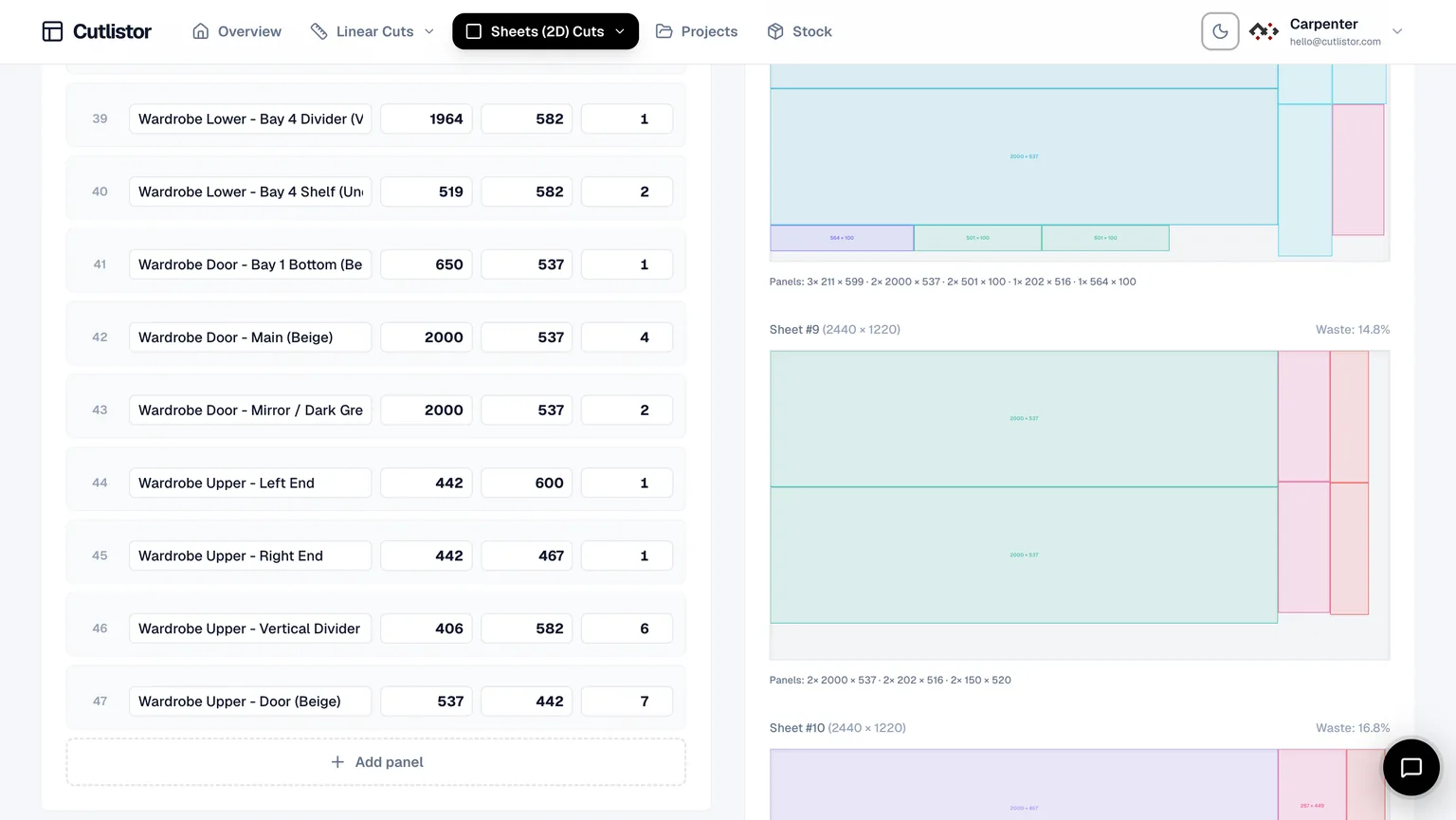
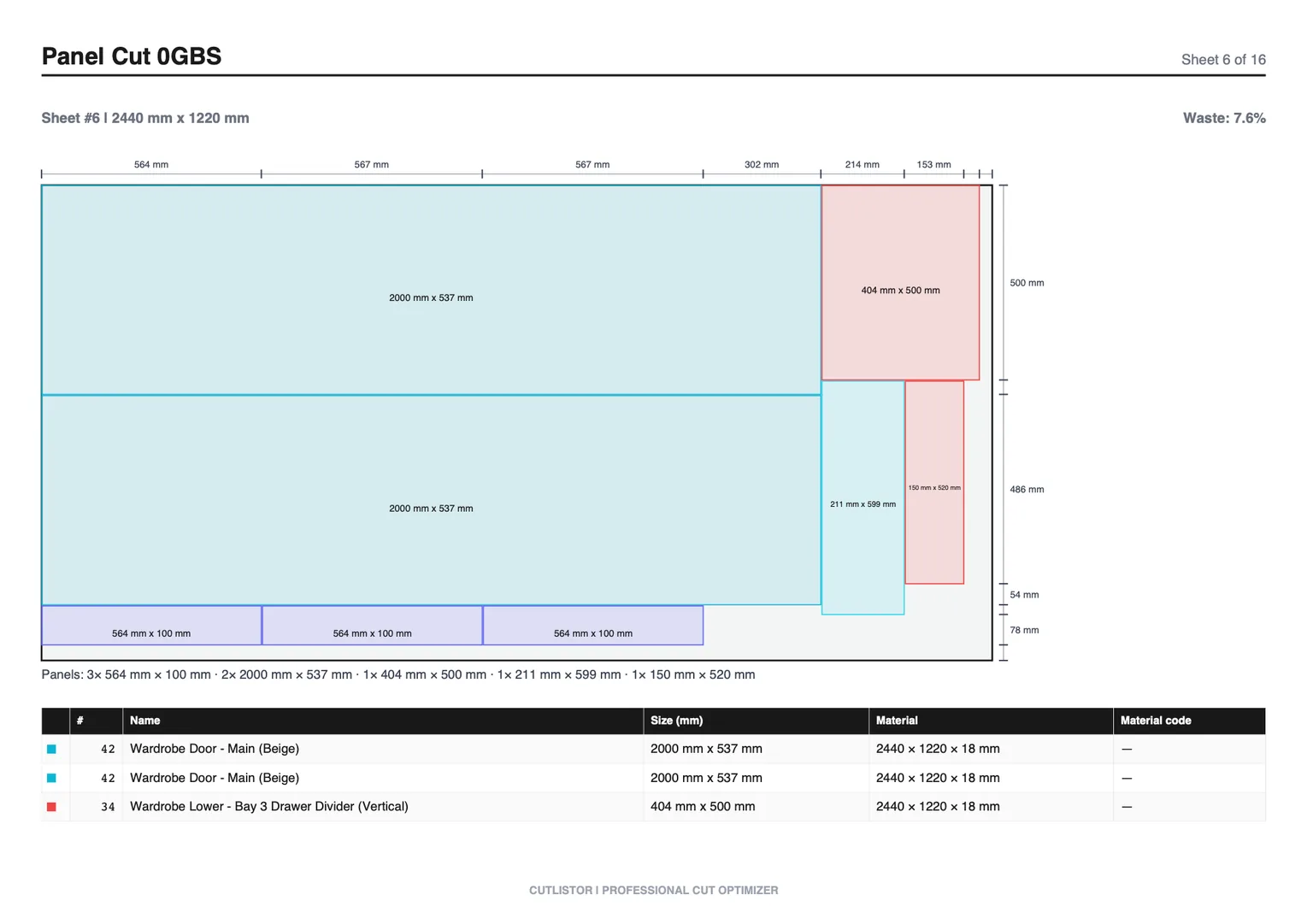
- Nest rectangles on a sheet. This is 2D bin packing - it needs a solver, not a formula, and doing it by hand on graph paper is where the evening goes.
- Subtract kerf from every cut automatically. You can add a formula, but keeping it correct across every part and every re-cut is where the errors creep in.
- Re-solve when one dimension changes. Change a cabinet width in a spreadsheet and the layout is invalidated silently; nothing tells you the sheet count moved.
- Track usable offcuts between jobs. Last week's part-sheet is real material with a real value, and a spreadsheet has no concept of it unless you maintain that by hand.
- Produce a cut diagram a person can follow at the saw. A table of dimensions is not a cutting plan, and the translation from one to the other happens in someone's head.
| Task | Excel | Cutlistor |
|---|---|---|
| Parts list and quantities | Excellent | Good |
| Material costing with your formulas | Excellent | No |
| Supplier-ready export | Excellent | CSV / XLSX export |
| Nest parts on sheets | Manual only | Automatic |
| Kerf on every cut | Manual formula | Automatic |
| Re-solve after an edit | No | Instant |
| Offcut tracking between jobs | Manual | Stock inventory (paid) |
| Visual cut diagram | No | PDF cut plans |
| DXF for a CNC | No | Yes |
| Works offline | Yes | No |
The workflow that keeps both
You do not have to choose, and the transition costs about five minutes.
Build the parts list in the spreadsheet exactly as you do now - one row per part, with width, length, quantity and material. Import that CSV or XLSX straight into Cutlistor, which reads it directly rather than making you retype anything. Optimize, then export the PDF cut plan for the shop and, if a CNC is involved, DXF for the machine.
Costing stays in the spreadsheet, where your formulas already live. The optimizer tells you how many sheets you actually need, which is usually the number your costing was guessing at.
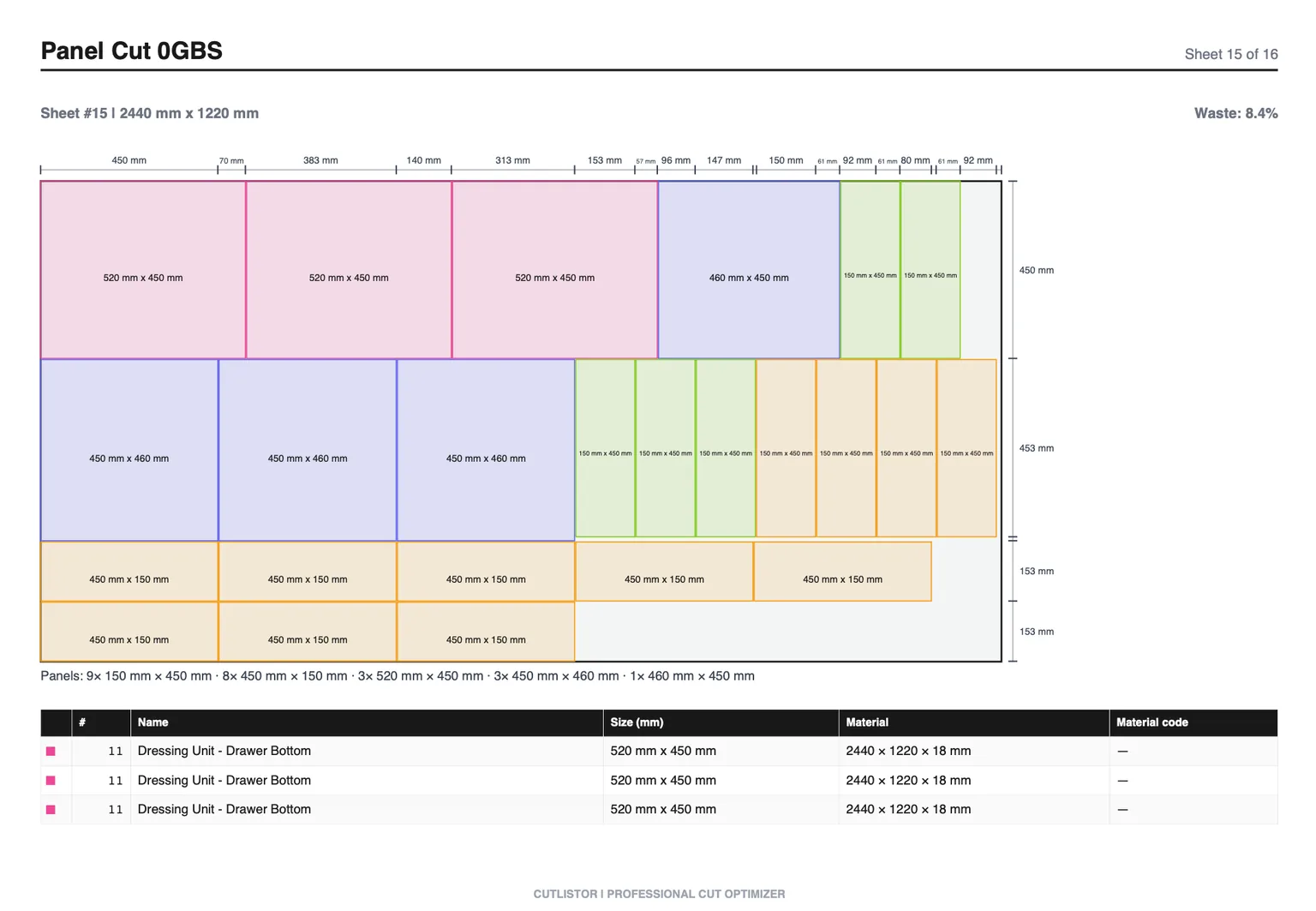
What a cutting-optimizer spreadsheet template actually gets you
There are downloadable Excel templates that claim to optimize cutting, and they are worth understanding before you spend an evening on one.
The good ones lay out a tidy parts table with kerf columns and a bit of conditional formatting, which is genuinely useful as a parts list. The ones that claim to nest usually either solve a single simplified strip-cutting case, or require the macro-enabled Solver add-in and a model you have to maintain yourself.
Neither approach re-solves when you change a dimension, which is the thing you actually need it to do. If a template is doing the job for you, keep it - but check it against a real optimizer once on a job you have already cut, and compare the sheet counts.
When to stop using only a spreadsheet
- You have drawn a sheet layout on graph paper in the last month.
- You bought an extra sheet because the layout did not work out as planned.
- A dimension changed and you had to redo the layout by hand.
- Someone at the saw asked you what goes where, and the answer was not on the printout.
- You have offcuts stacked against a wall and no idea what is in the pile.
- A CNC operator asked for a DXF and you sent a photograph of a spreadsheet.
Try it against a job you have already cut
The most convincing test is a job where you already know the answer. Take a cut list you have run, import the spreadsheet, set your real kerf and stock sizes, and compare the sheet count with what you actually bought.
The free tier runs in the browser with no account and nothing to install. Cutlistor's free tier meters something different: editing parts and re-optimizing the layout are unlimited, and only PDF export and starting a new project count against a daily allowance of 3. Cut lists are capped at 20 rows, CSV and XLSX import is limited to 5 rows per file, and nothing is saved between sessions. If the numbers match what you did by hand, your spreadsheet process is working and you should keep it.
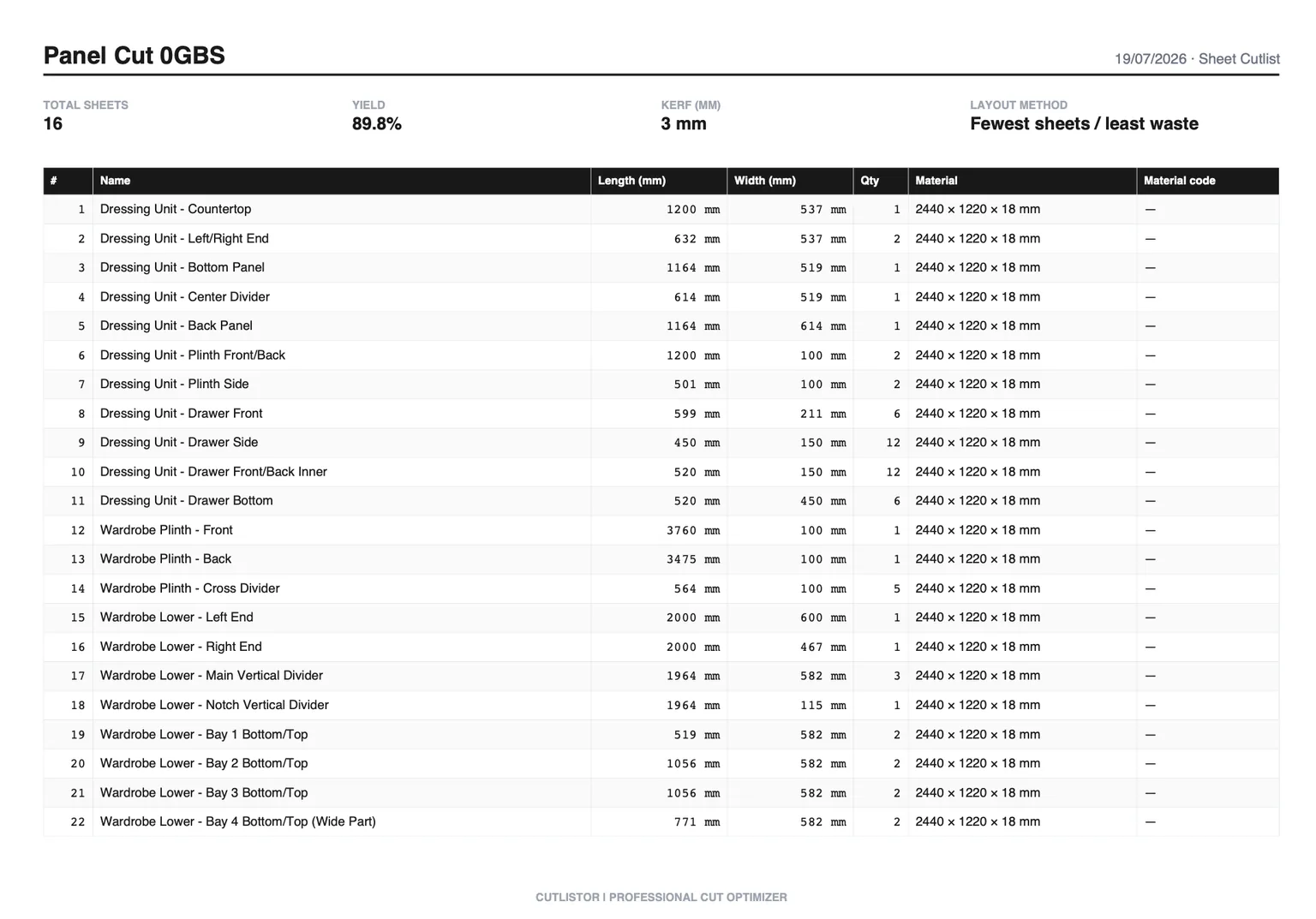
If it does not do what your shop needs, ask
Cutlistor is small enough that feature requests reach the person who writes the code. Several of the features above - laminate handling, miter-aware linear cuts, cross-section stock - exist because someone cutting material asked for them and explained why the workaround was costing them time.
If your workflow needs something that is not here, describe it and we will look at building it. That is a genuinely different proposition from filing a ticket against a twenty-year-old desktop product or a tool maintained as a side project, and it is worth weighing alongside a feature table.
FAQ
- Can Excel optimize a cut list?
- Not meaningfully. Excel can hold the parts list, quantities and costs, but nesting rectangles on sheets is a 2D bin-packing problem that needs a solver. Templates that claim to optimize generally handle one simplified case or depend on the Solver add-in and a model you maintain by hand, and none of them re-solve automatically when a dimension changes.
- Do I have to stop using my spreadsheet?
- No, and you probably should not. Keep the parts list and costing in Excel, then import the CSV or XLSX into the optimizer for the nesting and the cut diagram. Cutlistor reads spreadsheet files directly, so nothing is retyped.
- Is there a free cut list optimizer that reads Excel files?
- Yes. Cutlistor's free browser tier imports CSV and XLSX (up to 5 rows), allows 3 PDF exports per day with unlimited editing and re-optimizing, and up to 20 cut list rows, with no account and no download. Larger imports, saved projects, and DXF export are paid, starting at $12 per month.
- What about a cutting optimization Excel template?
- As a parts list, a good template is genuinely useful. As an optimizer it will either solve one simplified strip-cutting case or lean on the Solver add-in, and it will not re-solve when you change a width. Test one against a job you have already cut and compare the sheet counts before relying on it.
- Can I export back to Excel?
- Yes. Cutlistor exports cut lists and layout tables to CSV and XLSX, so the results can go back into your costing spreadsheet. The round trip is deliberate - the spreadsheet stays the system of record for anything commercial.