
Article
How to Import a Cabinet BOM From Excel Into a Cut List Optimizer
Cutlistor Team4 min read
Introduction
Most cabinet offices already own the BOM in Excel: boxes, doors, hardware, and finishes on one workbook. Importing that BOM into a cut list optimizer is how you keep Excel for quoting and still get real nesting.
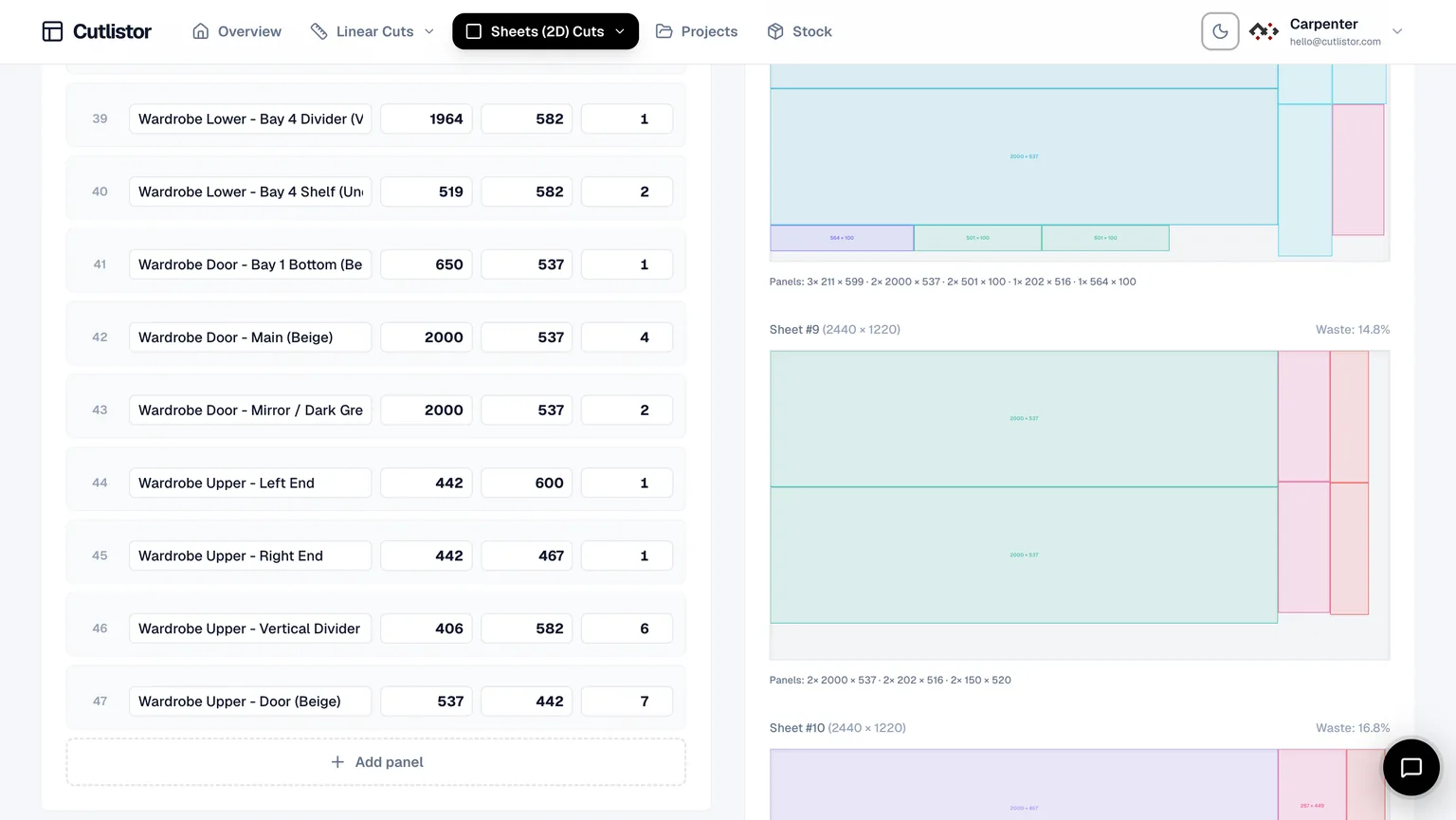
This cabinet-focused guide builds on our general Excel cut list import article with casework columns, material splits, and free-tier limits that matter on kitchen jobs.
Step 1: Prepare the Cabinet Workbook
| Column | Cabinet example | Required? |
|---|---|---|
| Part / Label | W30-BOTTOM | Recommended |
| Length | 762 | Yes |
| Width | 578 | Yes for panels |
| Quantity | 1 | Yes |
| Material | 3/4 white melamine | Strongly recommended |
| Grain | lock / free | For doors and exposed ends |
| Cabinet / Room | Island | Optional tracking |
| Notes | show face out | Optional |
Step 2: Split Sheet Panels and Linear Sticks
| BOM rows | Optimizer | Stock |
|---|---|---|
| Case panels, doors, shelves | Sheet (2D) | 4x8 / 2440x1220 sheets |
| Face-frame members | Linear (1D) | Stick lengths from supplier |
| Cleats, scribe, trim | Linear (1D) | Stick or rip stock |
| Hardware | Do not import | Keep in Excel only |
Step 3: Import Into Cutlistor
Open the sheet or linear tool, choose CSV/XLSX import, upload the file, and confirm column mapping. Fix flagged rows before you trust the nest.
Free use is genuinely unmetered where it matters for cutting: change a dimension, re-nest, change it again, at no cost. The 3-per-day allowance covers PDF exports and new projects. Cut lists stop at 20 rows, imported CSV or XLSX files at 5 rows, and there is no persistence between visits.
- 3 PDF exports per day (editing and re-optimizing unlimited)
- 20 part rows per session
- CSV/XLSX import up to 5 rows
- 3 AI plan scans and 3 3D CAD imports per month on the free tier
- No saved projects until you sign up for a paid plan
Step 4: Kerf, Grain, Nest, Export
Set kerf, lock grain on visible parts, nest, and export PDF plans. Re-import or edit when the designer changes a run of bases. Paid plans save the project so a multi-day kitchen does not live only in browser memory.
Common Cabinet BOM Import Errors
| Symptom | Likely cause | Fix |
|---|---|---|
| Parts huge or tiny | mm vs inches mixed | Normalize units before import |
| Everything on one sheet color | Missing material column | Add material; re-import |
| Doors rotated wrong | Grain not locked | Set grain lock flags |
| Import rejects file | Merged cells / two headers | Clean to one header row |
| Only five rows import | Free tier CSV cap | Paid plan or split critical trial rows |
| Hardware in nest | Imported non-cut rows | Filter BOM to cut parts only |
Shop Checklist Before You Hit Import
A BOM that is still being edited is not ready to import. Version it, freeze the part sizes at design sign-off, and import from that frozen copy — importing from a live workbook means the nest reflects a state that no longer exists by the time anyone cuts.
A cabinet BOM normally carries far more than cut parts: hinges, slides, pulls, finish schedules, labour lines. Filter to the rows that describe something with a length and a width before importing, and leave the rest in the estimating workbook where they belong.
The first import is the expensive one. Once the column mapping, units, and material names line up, save that workbook as the shop's BOM template and export from it every time — the cleanup cost then drops to roughly zero.
Save the agreed column layout as the shop's BOM template so the next export does not need renegotiating.
- One header row; no merged title cells above the data
- Units consistent across every numeric cell
- Material names match how you buy stock (not marketing labels)
- Grain lock flags on doors and exposed ends before you nest
Conclusion
Importing a cabinet BOM from Excel is the commercial path: keep the workbook for the office, nest in software for the floor. Cutlistor maps XLSX/CSV into sheet and linear optimizers with honest free-tier caps on rows and imports.
Clean one kitchen sheet and run it through the Excel cut list optimizer workflow before your next material order.